> ## Content Index
> Fetch the complete content index at: https://blog.addpipe.com/llms.txt
> Use this file to discover other available public pages before exploring further.
# Pushing Recordings to Google Cloud Storage
- URL: https://blog.addpipe.com/pushing-recordings-to-google-cloud-storage/
- Published: 2019-08-27T16:30:33.000Z
- Updated: 2026-05-21T08:17:51.000Z
- Author: Remus
- Tags: Tutorials, Product Updates, #Import 2026-05-22 13:18
[Cloud Storage](https://cloud.google.com/storage/) is Google's solution for unified object storage which works very similar to the way Amazon S3 does.
The storage cost is based on a combination between the storage class you choose and the region availability. At the time of writing these are the prices:
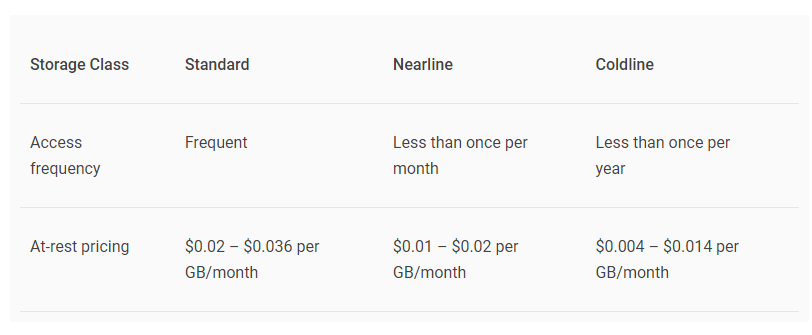
Google Cloud Storage pricing
You will get $300 worth of credits when you sign up for the Google Cloud trial which can be spent in 365 days.
**Google's solution is compatible with Amazon's S3 API so you can configure Pipe to push your recordings to Google's Cloud Storage through the S3 push feature.**
Here are the steps you need to take so that your recordings will be pushed to Google Cloud Storage.
**I. Create a Google Cloud account:**
1. Go to and click the \[Try It Free\] button. You will be asked to login with your Google account or create one if you don't have one.
2. Once you're account has been created you will be automatically redirected to the Google Cloud Storage console.
**II. Create a new Google Cloud Storage bucket**
1. Log in to your cloud console at if your are not already logged in.
2. At the top click the \[Create Bucket\] button
3. Give the bucket a name
4. Choose the default storage class and the location
5. Set how to control access to objects. Important to note that if you select **Uniform** access control, this means ACLs will be disabled and you will have to specify the **None** option when configuring Pipe
6. Set how to protect object data
7. Click \[Create\]
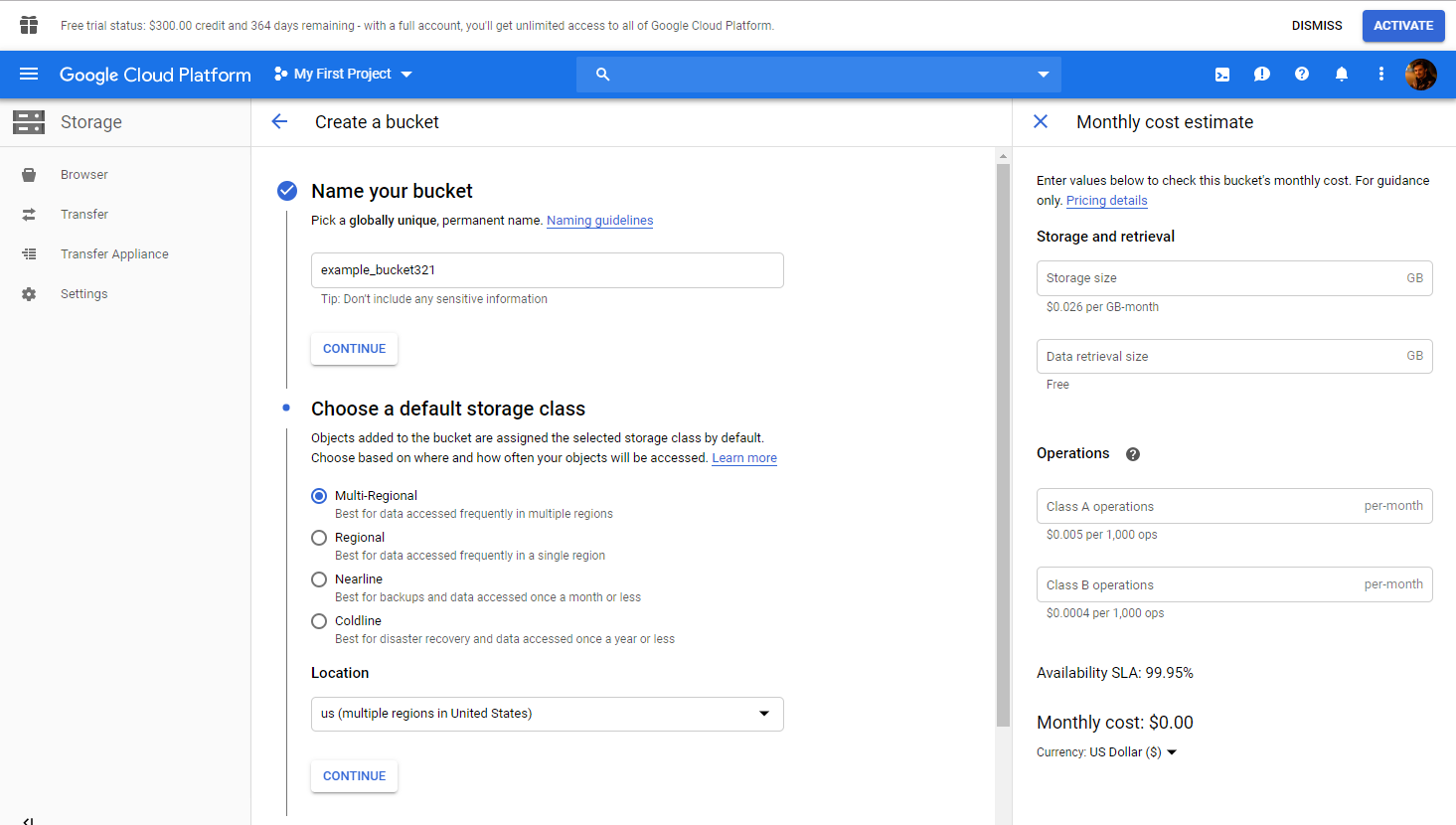
Google Cloud Storage Create Bucket UI
**III. Enable Interoperability and generate a new key for access**
1. Once the bucket is created go to project settings located on the left menu
2. Go to the interoperability tab within Project Settings and enable it
3. Once enabled a **request endpoint** will be shown along with other new options. We will need this later on
4. Scroll down a bit and click \[Create a key\] to generate a new access key pair
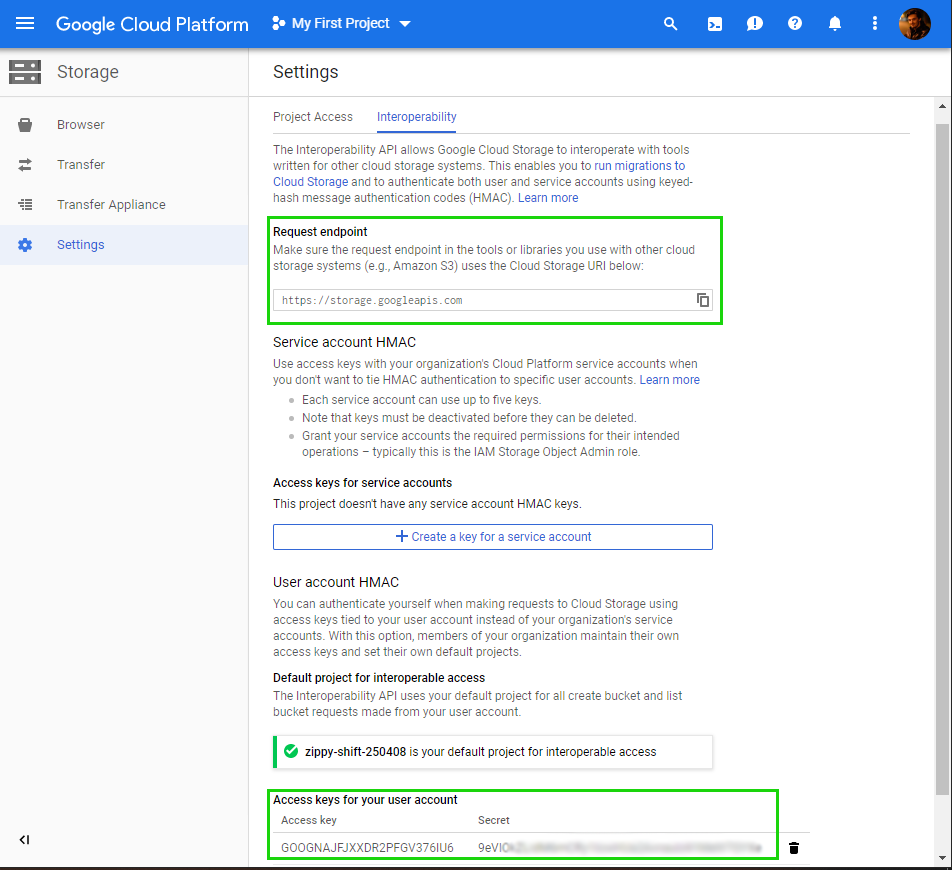
The interoperability settings page
**IV. Configure Pipe to push recordings to Google Cloud Storage**
1. Sign in to your Pipe account and go to the S3 storage section
2. Copy the Google Cloud Storage Key (generated above) and paste it into the **Access Key ID** field
3. Copy the Google Cloud Storage Secret (generated above) and paste it into the **Secret Access Key** field
4. Type your bucket name into the **Bucket name** field
5. Leave **Bucket folder** empty
6. Select **Custom endpoint...** for **Bucket region or custom endpoint**
7. In the **Custom endpoint** field that shows up copy the endpoint shown in interoperability settings page: **storage.googleapis.com**
8. Select any of the canned ACLs. Google Cloud Storage supports all of the options. If when setting up your Google Cloud Storage bucket, you choose **Uniform** access control, here you must select the **None** option.
9. Click \[Save S3 Credentials\]
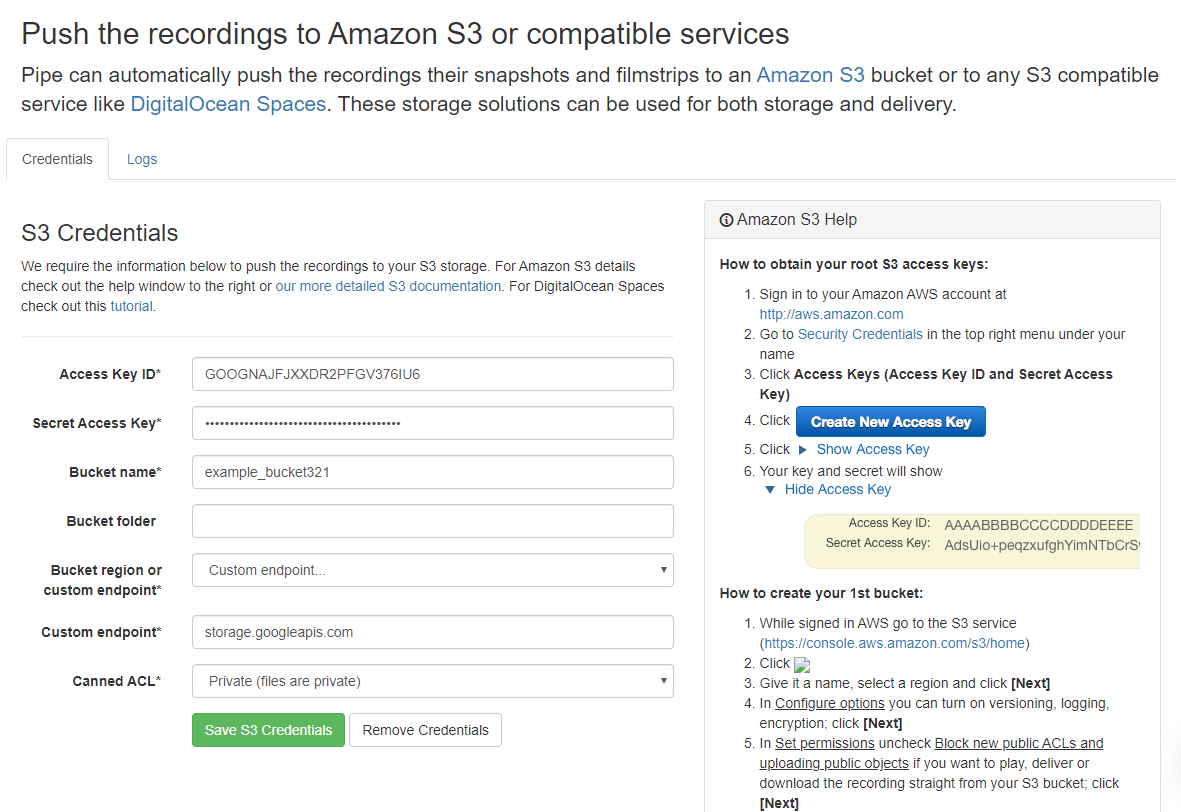
Pipe S3 page configured to push to Google Cloud Storage
All the existing files associated with a new recording (transcoded .mp4 files, original file, snapshot and filmstrip) will now be pushed to your Google Cloud Storage bucket. The links to all the files will be provided via the `video_copied_s3` webhook and they will be also shown in the [Pipe S3 logs section](https://addpipe.com/s3%5Flogs).
You can also view the files and all the details about them in your Google Cloud Storage console.
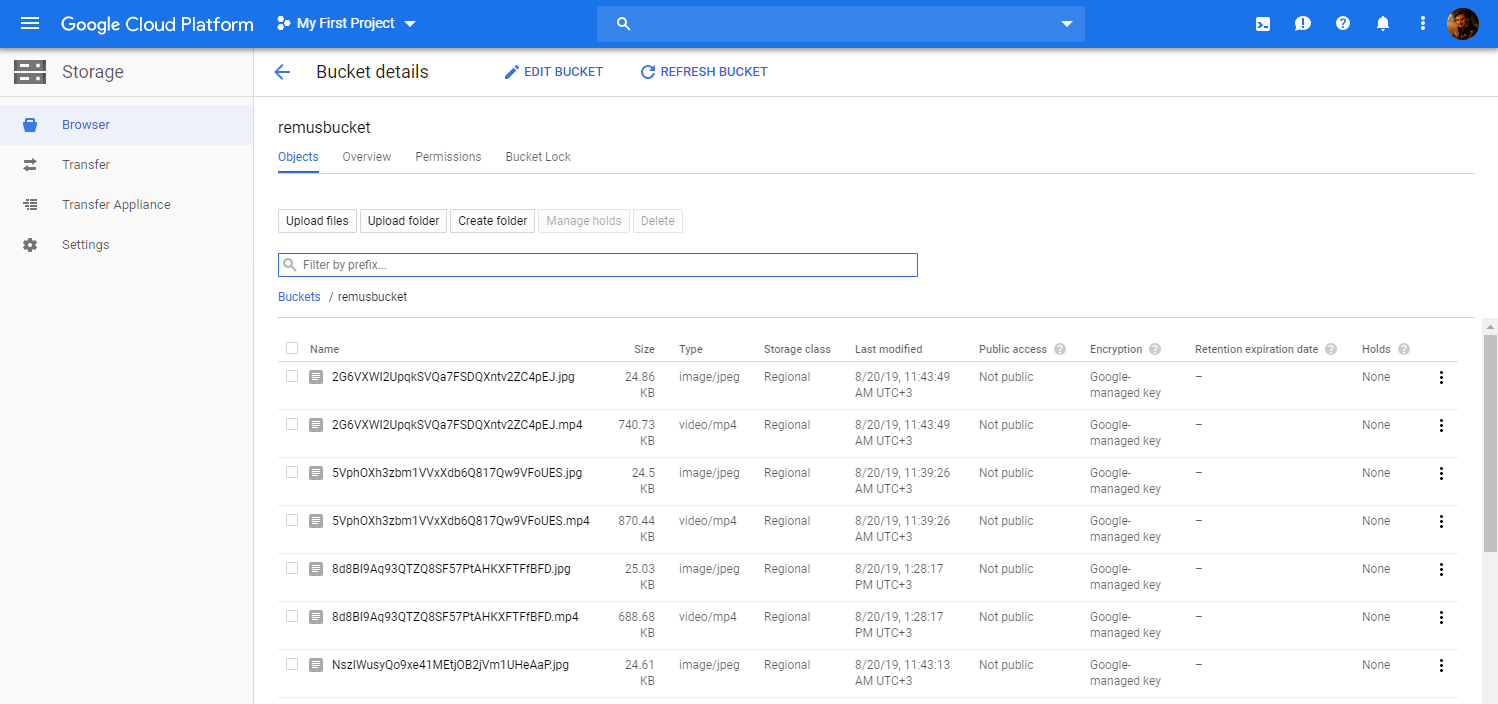
Browsing the Google Cloud Storage bucket contents
For more information on Google Cloud Storage check out .