Camera & Microphone Testing Using BrowserStack
One of our main areas of focus at Pipe is providing a reliable experience for audio, video, and screen recording.
Our clients encounter a wide range of devices, browsers, configurations, and connection speeds in their production apps, which is why testing is crucial to us, especially when developing the Pipe recording client, which runs on users' devices across many OS/browser/permissions/webcam configurations.
For a long time, our only method of testing was using real devices. As a result, we've built a library of maybe two dozen smartphones and computers running a mix of operating systems and browsers. We also have a wide range of microphones, headsets, and webcams from various manufacturers. Testing on real devices continues to be our main method of testing.
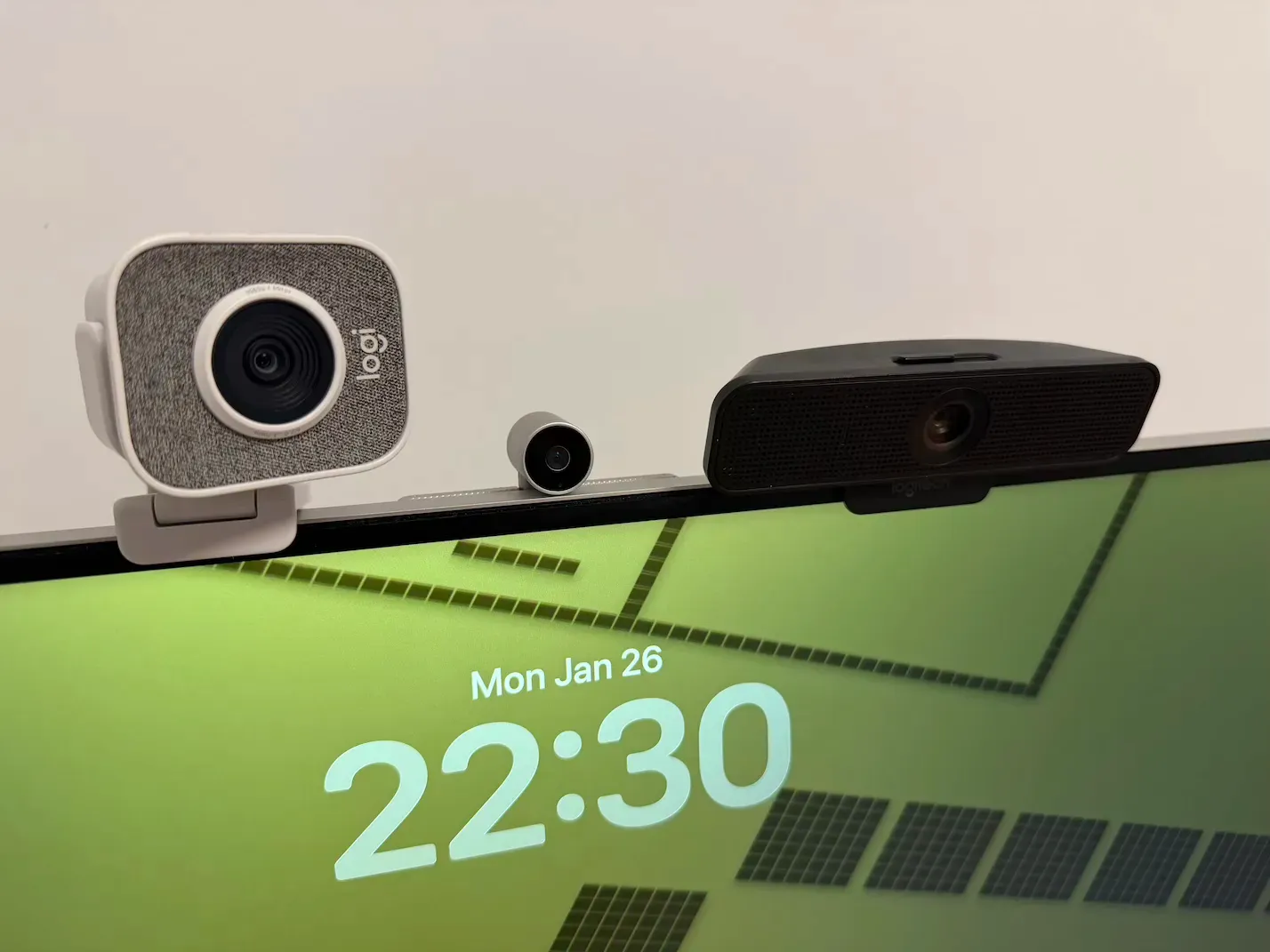
In recent years, we've also started using virtual machines to run specific versions of macOS or Windows. Virtual machines cover the desktop space very well. However, testing on mobile devices remained a challenge with many devices and new Android and iOS versions being released yearly.
That's how we ended up looking into BrowserStack. We had to test a change to HTML Media Capture behavior and needed more devices running Android 14, 15 and 16. It worked very well in this case, so we dived deeper.
In this article, we'll go through several microphone & camera related test cases where BrowserStack is valuable. We'll also touch on the limits of BrowserStack with such tests.
Why Use BrowserStack for Testing?
With BrowserStack's Live manual testing feature, you can instantly test your web app against:
- real iOS devices (iPhone & iPads) with different iOS versions and browsers
- real Android devices, from several manufacturers, with different Android versions and browsers
- Windows and macOS virtual machines with a variety of specific browsers and browser versions.
Since we have many Windows and macOS devices in the office and can also use virtualization to run various Windows/macOS versions, BrowserStack is particularly helpful for testing older browser versions or specific mobile devices that we would not otherwise have immediate access to. This makes it a perfect tool for testing our Pipe video recording client.
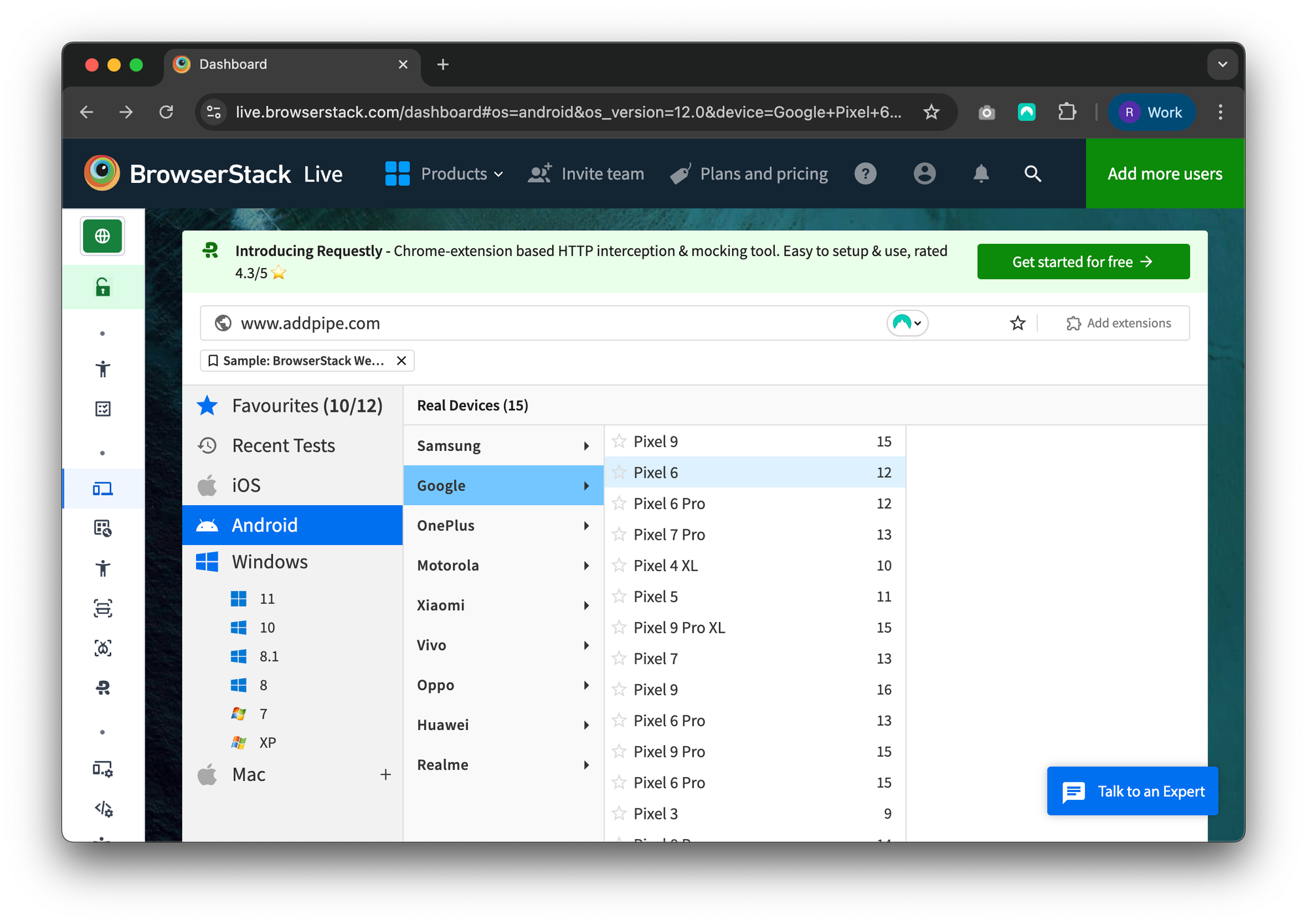
In the BrowserStack Live section, all you have to do is select the OS and device you want to test on, together with the browser and version, and BrowserStack will launch the specific test environment with your web page already loaded. You can also view the developer console for the mobile browser, rotate the device, enable network throttling, take a screenshot, and much more.
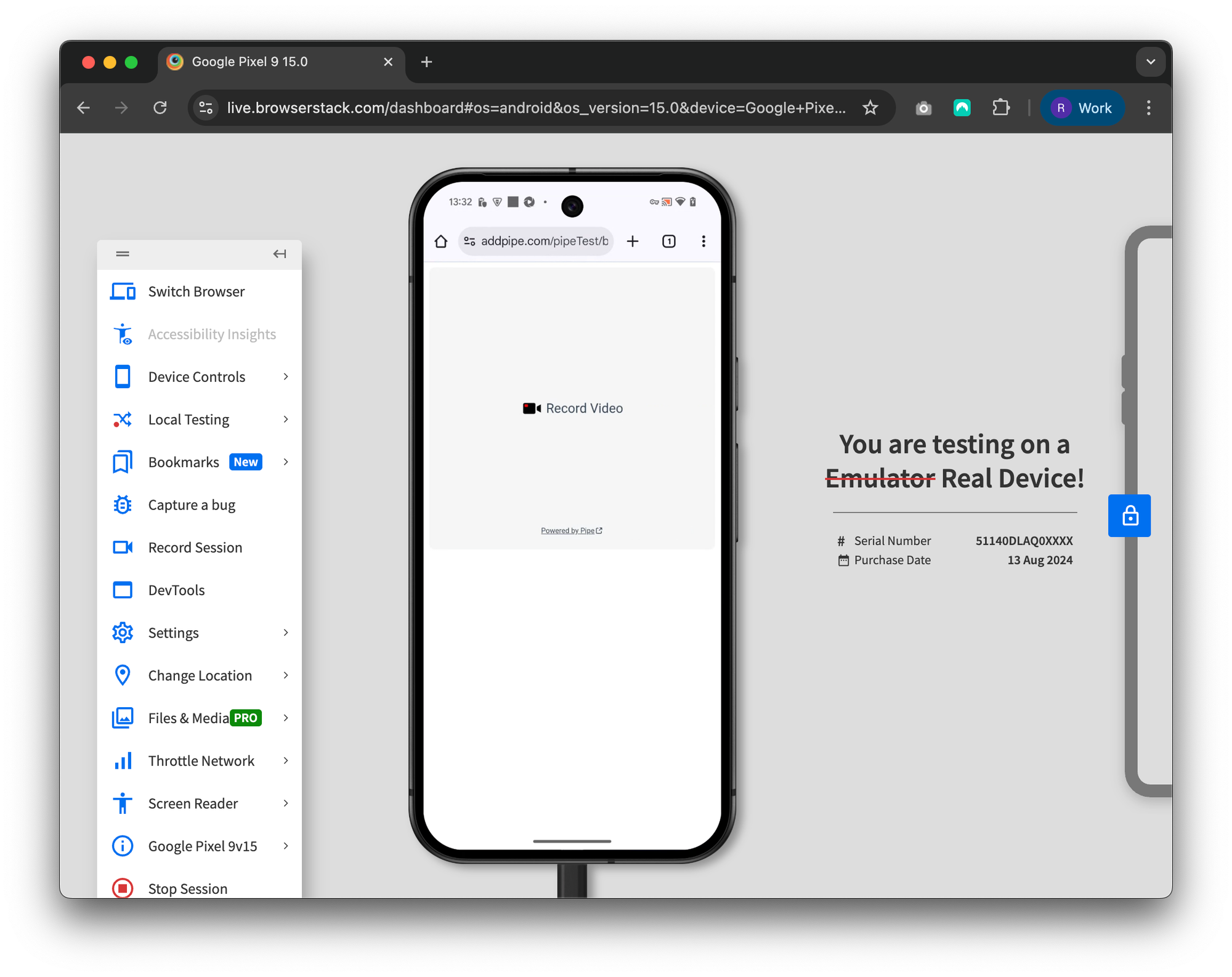
Here is how it looks, for example, when testing on a real Google Pixel 9, with Android 15 in Chrome:
Test 1: Can we access all cameras on mobile devices?
On mobile devices, cameras are built in, so from the browser, we should at least have access to the built-in ones. We fired up several iOS and Android devices, loaded up our video recording demo, and found the following:
With Safari on iOS devices, one has access to all the iPhone's cameras. The video is just a black screen, so we can't test picture quality or bitrates, but we can test our device selector and resolution support (see below).
With Chrome on Android, for the camera, there's only an injected media sample option, but for the microphone, there are 3 "Fake Audio Input" sources. Camera testing is thus fairly limited. Chrome is probably using the --use-fake-device-for-media-stream and --use-file-for-fake-video-capture flags to use an mjpeg file as simulated video input. This makes sense on desktop, but not so much on mobile.
Edge on Android, on the other hand, lists all cameras and microphones, so that's a welcome surprise!
Test 2: Do we have access to any camera or microphone on desktop devices?
On macOS, Safari had no camera, and for audio input, it had a BlackHole 2ch device available, which produced no sound, while Chrome behaved just like on Android (injected mjpeg + 3 fake audio devices). Luckily, we have many generations of Mac devices in the office, including a Mac Mini (one of the few Macs without a camera and microphone).
On Windows, Chrome and Edge behaved the same as on Android (injected mjpeg + 3 fake audio devices).
Test 3: Does screen recording work on desktop devices?
Up next, let's see if we can test getDisplayMedia using our screen recorder demo.
Screen recording in Safari on macOS did not work, while Chrome on macOS returned a sample video (without opening the mandatory screen recording dialog box). Using physical devices for testing screen recording has no replacement for now.
On Windows 11, screen recording worked as expected in both Chrome and Edge.
Test 4: Can we change browser-level or OS-level camera and microphone permissions?
Somewhat!
Edge and Chrome on Windows 11 behaved as expected.
Safari on macOS behaved as expected (for recording audio) while Chrome on macOS did not expose the permission dialog or per-site browser-level settings (probably because of the injected mjpeg as camera device).
macOS and Windows level Camera & Microphone permissions were not accessible. For such tests, use actual devices or virtualization.
Test 5: Can we use different resolutions on mobile?
The cameras of mobile devices, as exposed in browsers, support a wide range of resolutions. These will vary between OSs, front and back cameras, and browsers.
Manual Testing Steps:
- Start a Live session in BrowserStack for an iOS device, for example, an iPhone 14 running Safari 16.
- Open the handy webcam resolution tester.
- Once the page loads, click on the [Request Camera Permissions] to start the test. Run an ideal resolution scan.
- Repeat the steps above on an Android device, for example, the Samsung Galaxy S23, using Chrome.
iPhone 14 Safari Test
Camera resolution test on Safari on iOS with BrowserStack
Samsung Galaxy S23 Chrome Test
Camera resolution scan test on Chrome on Android with BrowserStack
On Safari on iOS, the test behaved exactly as it did on a real device. With the Chrome on Android test, however, we've hit one of the BrowserStack limitations. We cannot directly test against a real camera; it uses injected media with a fixed resolution. That is why some of the tests fall back to the HD resolution of 1280 x 720. So, with Chrome, these resolution results are inconclusive.
Quick note: BrowserStack was essential for testing, on launch day, the resolutions supported by iPhone 17's square sensor for the front camera. We thought the square sensor would enable landscape resolutions while holding the device in portrait. It didn't.
Test 6: Can we rotate mobile devices to get landscape resolutions?
Yes, you can rotate the device while in a Live testing session.
With Safari on iOS devices, where one has access to all the iPhone's cameras, we got, as expected, portrait resolutions when the device was in portrait mode and landscape resolutions when it was in landscape mode. Again, we used our webcam resolution scanner to perform the tests.
Same result with Edge on Android.
With Chrome on Android, the results were not conclusive. Because it uses a simulated camera, it supports most resolutions, so its behavior is not representative of a real device.
Test 7: Can you test plugging in or removing devices?
No. For such scenarios, you'll need the physical devices. Once you call getUserMedia, plugging in or removing devices triggers the ondevicechange event which you need to listen to and act accordingly.
Test 8: Can you test various MediaRecorder codecs & containers?
Yes, you can! The video codec and container capabilities of the MediaRecorder API were recently updated in Safari 18.4 and Chrome 130, so there's new interest in detecting whether or not these new codecs are supported on the user's device. The codec testing code in our recently updated MediaRecorder API demo page seems to work well and. Using Chrome on a Google Pixel 9 PRO, we were able to record an AV1-encoded MP4 video file. Playback also worked.
Test 9: getUserMedia constraints
Our Pipe recording client asks the browser by default to apply the noise suppression filter to the microphone input, but Safari does not support this constraint.
Manual Testing Steps:
- Start different Live sessions on BrowserStack configured for Chrome, Firefox, Edge, and Safari.
- Once the test page loads, click on [Record Video]
- Open the browser's developer console for each browser and observe the logs.
From the Pipe recorder browser logs, we can clearly see that the request/constraint is respected and applied by Chrome, Firefox, and Edge. Tested on multiple versions of each browser, both older and newer. Here is an example log directly from a live session in BrowserStack:
pipe-log at 2025-07-30T08:20:35.904Z calling getUserMedia with the following constraints: {"audio":{"noiseSuppression":true}}
pipe-log at 2025-07-30T08:20:38.378Z audio settings:{"autoGainControl":true,"channelCount":1,"deviceId":"default","echoCancellation":true,"groupId":"f7b0926894f24c30d93c757622bf69e6fcade8aa5347b4a91a71df0d747eb8b1","latency":0.01,"noiseSuppression":true,"sampleRate":48000,"sampleSize":16,"voiceIsolation":false}
None of the Safari versions honors the request. Tested up to Safari 18.4 on macOS Sequoia:
pipe-log at 2025-07-30T08:06:43.529Z calling getUserMedia with the following constraints: {"audio":{"noiseSuppression":true}}
pipe-log at 2025-07-30T08:06:45.359Z audio settings:{"deviceId":"9931C4E06BCABC3F925A281F2473C7FE389C757C","echoCancellation":true,"groupId":"DB00B4EF9ACEB249BEFDBF954F8B738E90D1FA7D","sampleRate":44100,"volume":1}
Test 10: Switching devices
We've worked hard to build one of the best camera and microphone selectors. Aside from some tests that require real-world devices, like unplugging a camera from the laptop, most other test scenarios for the device selector can be replicated using BrowserStack.
Manual Testing Steps:
- Start multiple Live sessions in BrowserStack, configured for different devices and OSes, with different browsers and versions.
- Open our video recorder demo. Once it loads, click [Record Video].
- Switch between different cameras and microphone devices using the integrated device selector and observe the behaviour.
Here are a few examples from what we've tested:
Windows 10 on Edge 137 Test
Device selector test on Windows 10 Edge 137 with BrowserStack
iOS 16 on Safari 16 Test
Device selector test on iOS 16 Safari 16 with BrowserStack
We've also tested Firefox 140 on Windows 10 and encountered another BrowserStack limitation: it only supports testing the microphone. No camera options are available, as is the case with Chrome, for example, with the default injected media sample.
Takeaways
BrowserStack is a great tool for testing various scenarios, including specific niches like testing for camera and microphone devices, which we've only begun to scratch the surface of with the example tests done above.
But like all tools, it has its limitations:
- The Media Injection feature is available only with the Team Pro plan.
- From my tests, Firefox and Safari have access only to a microphone device, while Chromium-based browsers (Chrome and Edge) have both a simulated camera and microphone devices against which you can test.
- Cannot test real devices for desktop. Desktop options are limited to VM environments.
- Safari versions are limited to the latest version available for each macOS release, so you cannot test against intermediary versions.
- You have no control over the browser version when testing against real mobile devices. The browser version will be the latest supported version for that particular device.
