Pushing Recordings to Box (via SFTP)
We've just created a new way to push recordings and their associated files to Box. This new integration is simple, and once set, it works as expected behind the scenes without your intervention.
Here's how to set it up in just a few steps:
Step 1: Make sure SFTP is available and enabled for your Box account/user
First, go to box.com and sign in or sign up. Box's SFTP service is available on Business and Enterprise plans and should be enabled by default. To check whether or not it is enabled, go to the Admin Console. From there, select Integrations and search for SFTP. Click the Box SFTP Server, then click Availability Status to check availability.
For up-to-date info, check out Box's official SFTP documentation.
Step 2: Create a Destination Folder in Box
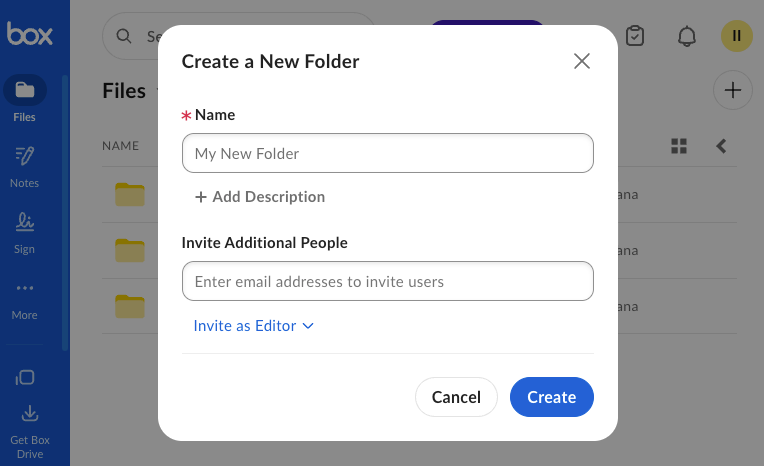
In your Box dashboard, navigate to the Files section, then create a new folder where you want your Pipe recordings pushed. For example, you might name it Pipe Recordings to keep things organized from the start.
Step 3: Configure Pipe to push files to your Box account through SFTP
Sign in to your Pipe Account Dashboard. You will need a PRO subscription to have access to the SFTP storage feature. Once logged in, go to Storage > Your Storage and click SFTP storage type.
Fill in the SFTP Credentials form with the following values:
- Host: sftp.services.box.com
- Port: 22
- Username: Your Box login email
- Password: Your Box account password
- Folder: Leave empty, or enter your folder name (e.g. Pipe Recordings)
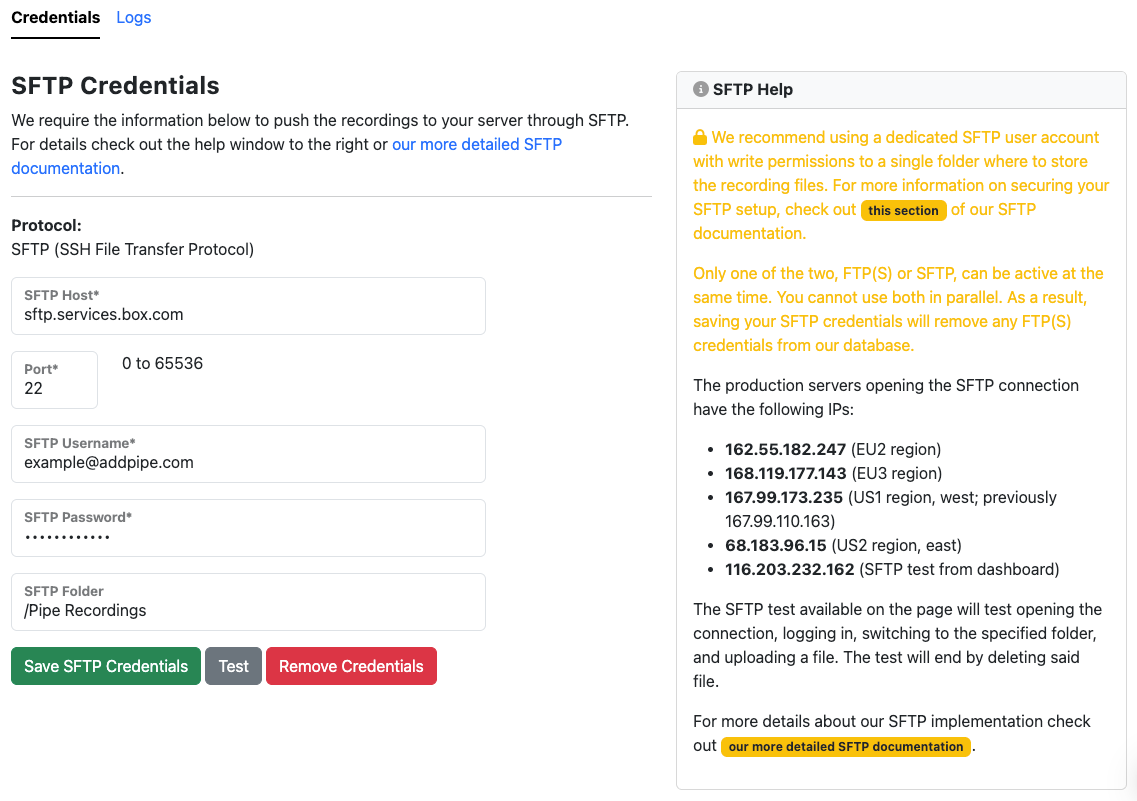
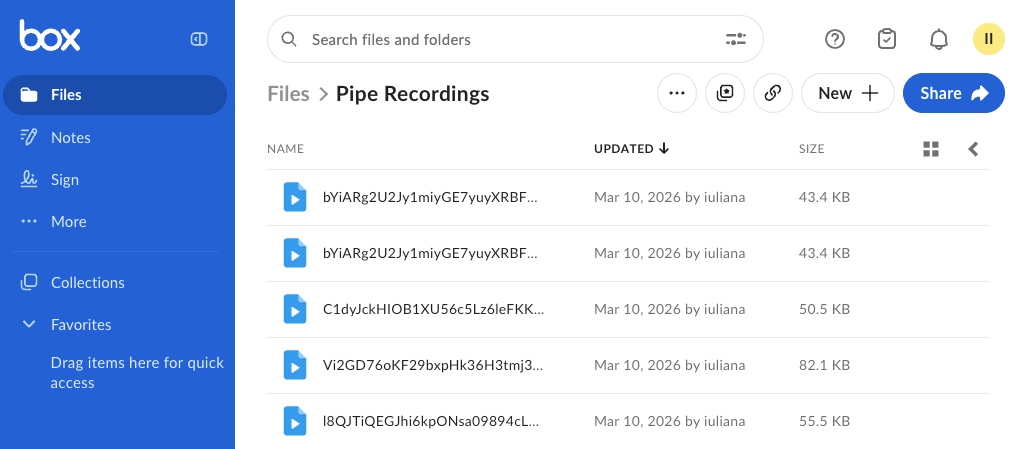
Save your credentials, then test the credentials/connection to make sure everything is ok. For confirmation, you can make a test recording in Pipe, then verify that the recording files appear in your Box folder.
Notes:
- If you’re using Single Sign-On with your organization, you’ll need to create a separate SFTP password for the user. The Box SFTP documentation has more information.
- If you overwrite an existing file, Box will provide a version history.