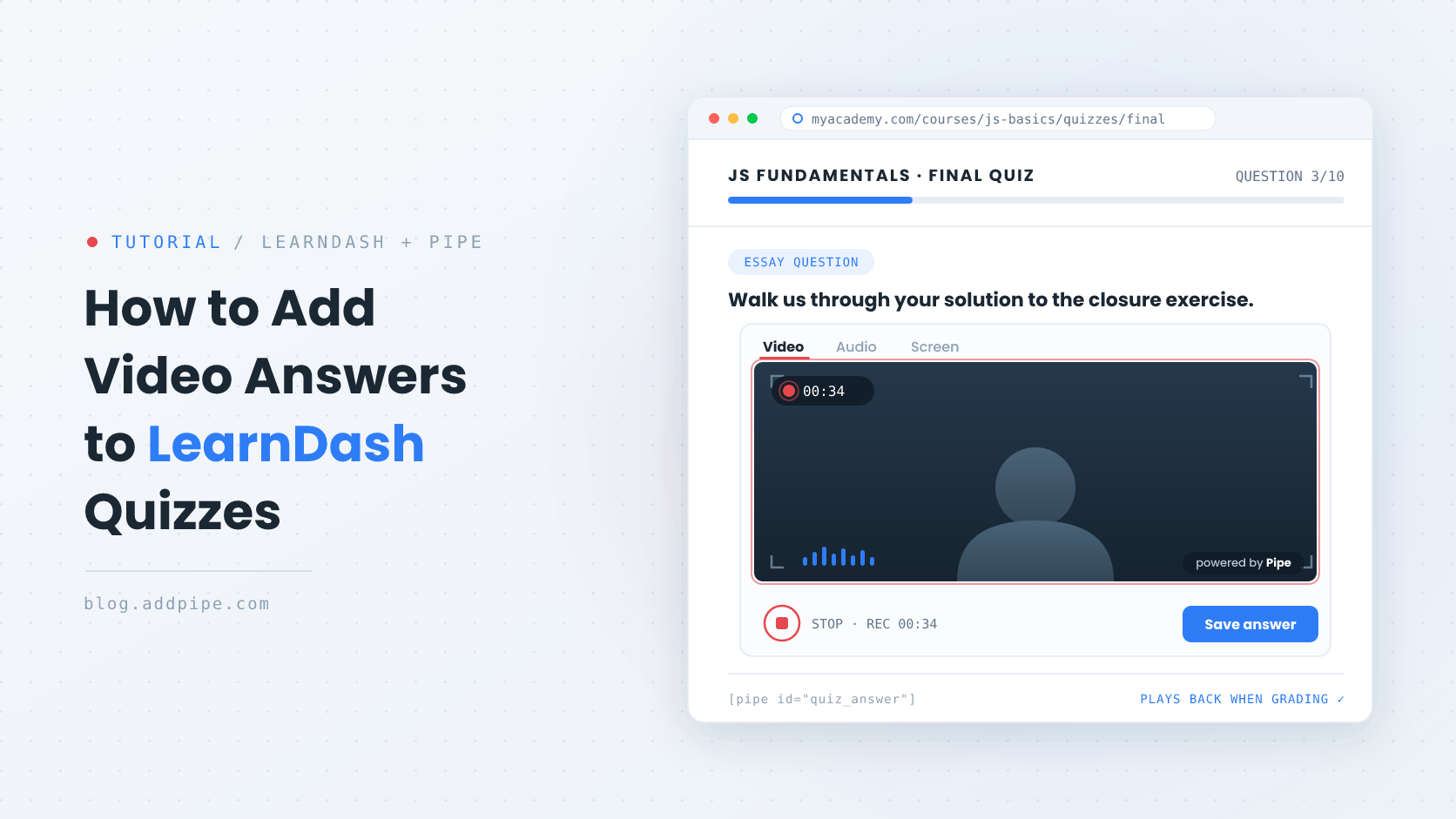
How to Add Video Answers to LearnDash Quizzes
A written answer tells you what a student knows. A recorded one tells you whether they can actually do it: hold a conversation in a foreign language, walk through a pitch, talk a client through a screen. With version 1.4.0 of the Pipe Audio Video and Screen Recorder plugin for WordPress, LearnDash quizzes can now collect that kind of answer directly, with students recording video, audio, or their screen inside the question itself.
What you need
- LearnDash, with a quiz you can add questions to
- Our plugin, connected to your Pipe account
- A Pipe account. Either a trial or a paid subscription works, so you can test the whole thing before committing to a plan
Setting it up
No code, no add-ons. Once you have a recorder shortcode, this takes about a minute.
Step 1: Generate the recorder shortcode
- In your WordPress backend, go to Pipe Recorder > Embed Recorder
- Generate a shortcode for the desired recording widget; it will look like
[pipe_recorder 1].
For more information about generating shortcodes, see our documentation.
Step 2: Add the shortcode to your quiz
- In LearnDash, open your quiz and add a question in the Builder tab with the Answer type set to Essay / Open Answer, and the Answer format set to Text entry.
- In that question's text (not the title), paste the recorder shortcode, for example
[pipe_recorder 1]. - Save the question and the quiz.
What students see
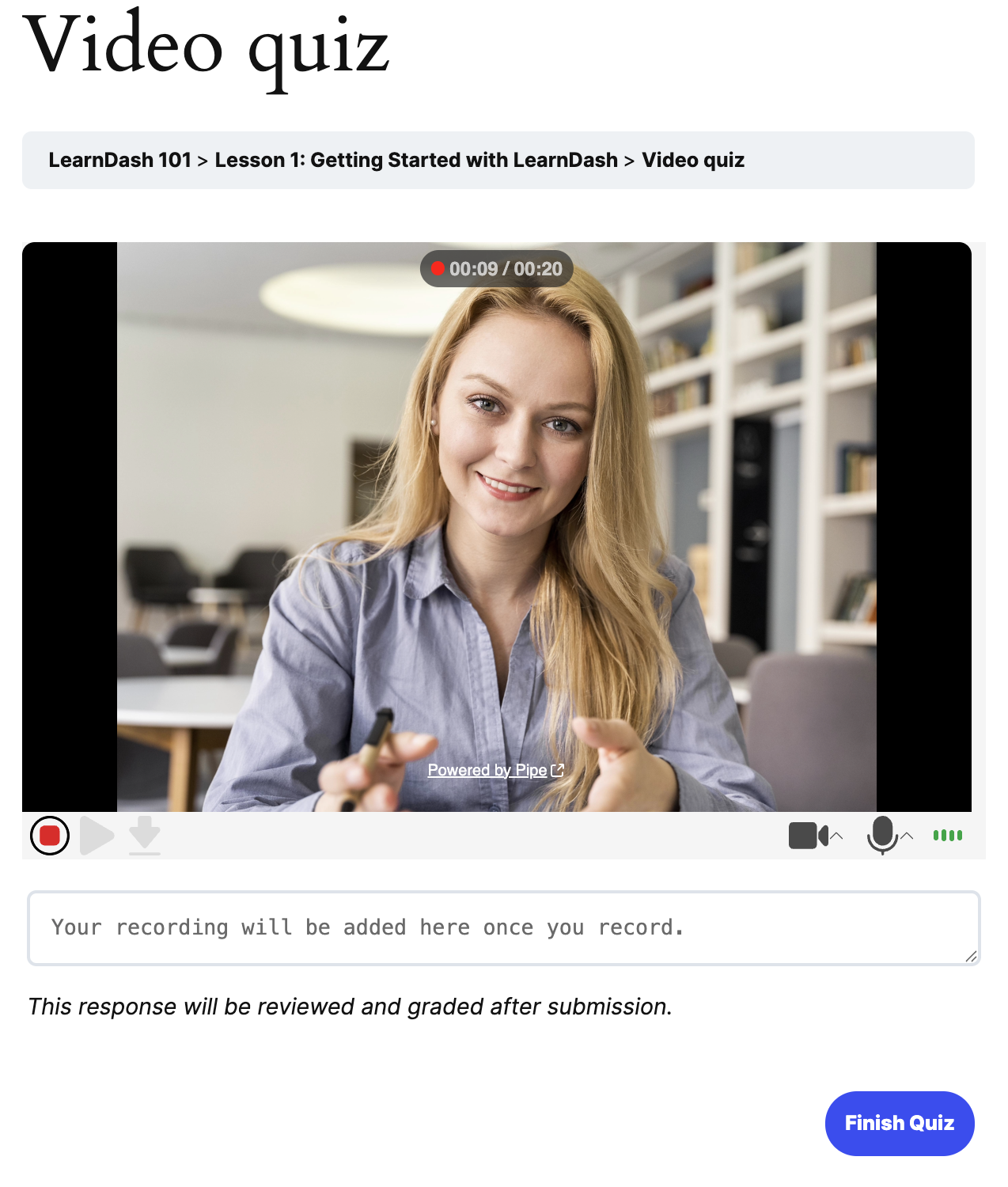
When a student reaches the question, the recorder appears inside it. They record their answer, and it is attached to the attempt. The quiz is submitted and tracked through LearnDash exactly as it was before, so course progress, attempts, and grading all keep working.
If you use a recorder on several questions in the same quiz, each one loads only when its question is shown, so the browser is not asking for the camera and microphone on every question at once.
Grading a recorded answer
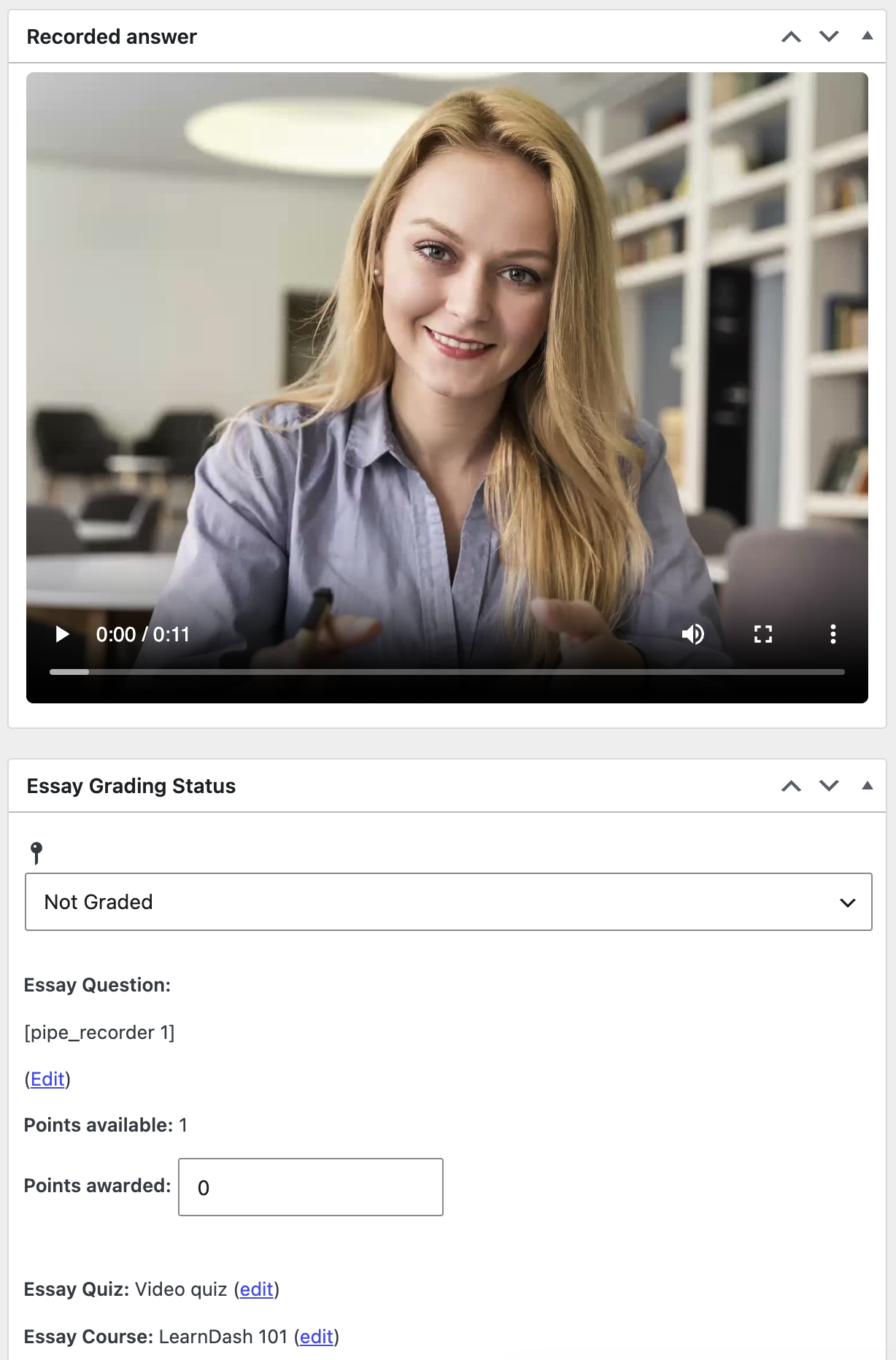
Go to LEARNDASH LMS > Quizzes > Submitted Essays and open a submission. The recording plays back in a "Recorded answer" panel, and you assign points the same way you would for a written essay.
Every recording also appears in our plugin's Recordings page and in your Pipe account dashboard, where you can download it or push it to your own storage.
Where course creators can use this
- Language schools collecting spoken answers to check pronunciation and fluency
- Sales and customer service training with recorded role plays instead of multiple choice
- Certification and coaching programs that ask for a practical demonstration on camera
- Software and technical training using screen recordings to confirm a student can perform a task
- Music and performance courses where the student needs to play or present
- Teacher training and public speaking courses built around presentation feedback
Frequently asked questions
Which question type do I need to use?
Essay / Open Answer, with the Answer format set to Text entry. That is the question type LearnDash grades manually, which is what you want for a recorded answer. If the format is set to Upload instead, there is no answer field for the recording to attach to.
Do students need to install anything to record?
No. Recording happens in the browser on desktop and mobile. Students click record, answer the question, and the recording is attached to their attempt. There are no apps to install and no files to upload.
Is the plugin free?
Our WordPress plugin is free and available in the WordPress Plugin Directory. It records against the Pipe platform, so it needs either a trial account or a paid subscription to work. Trial accounts are fully featured, so you can build a quiz with a video answer question and test the whole flow before subscribing.
