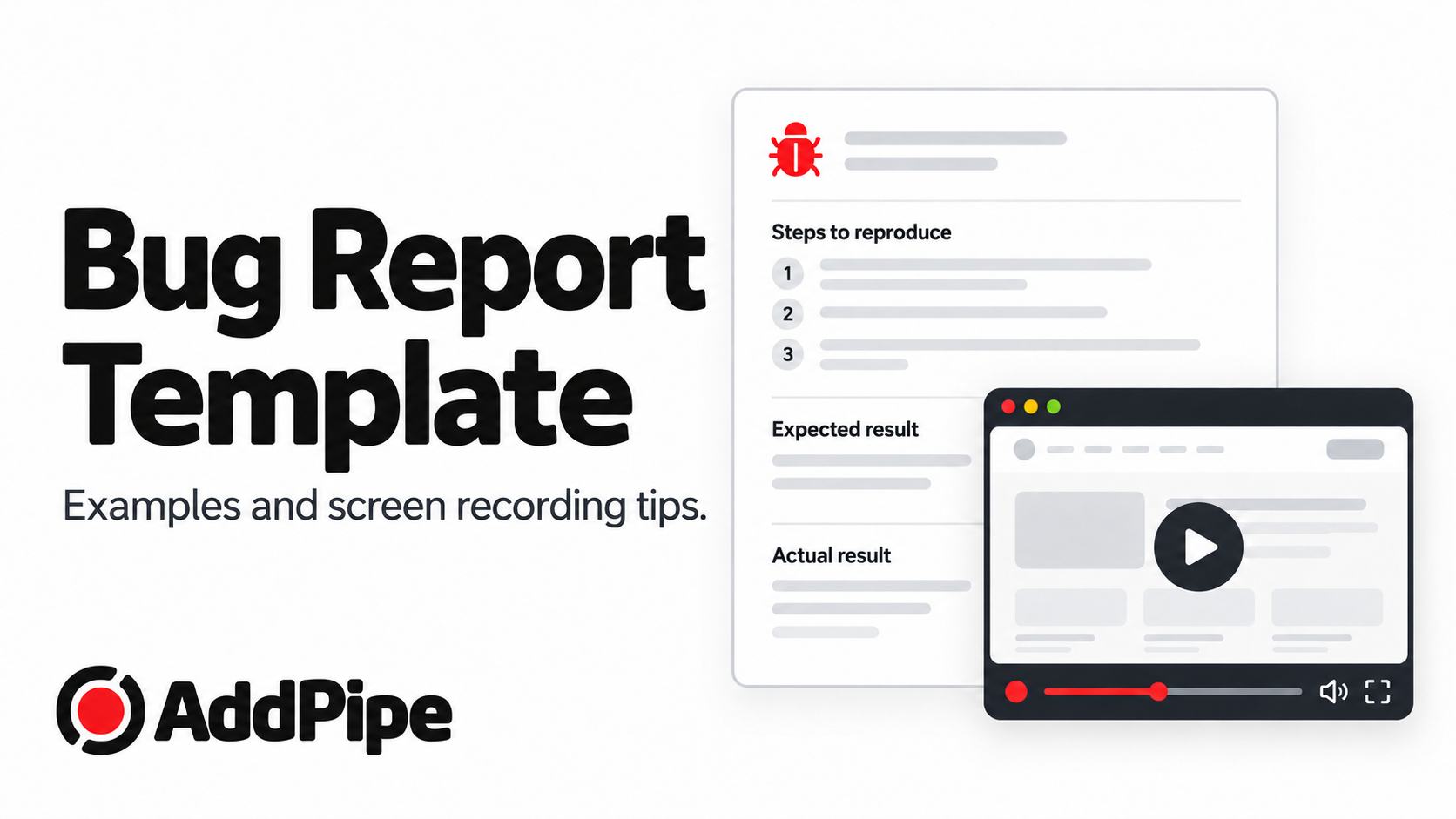
Bug Report Template: Examples and When to Add a Screen Recording.
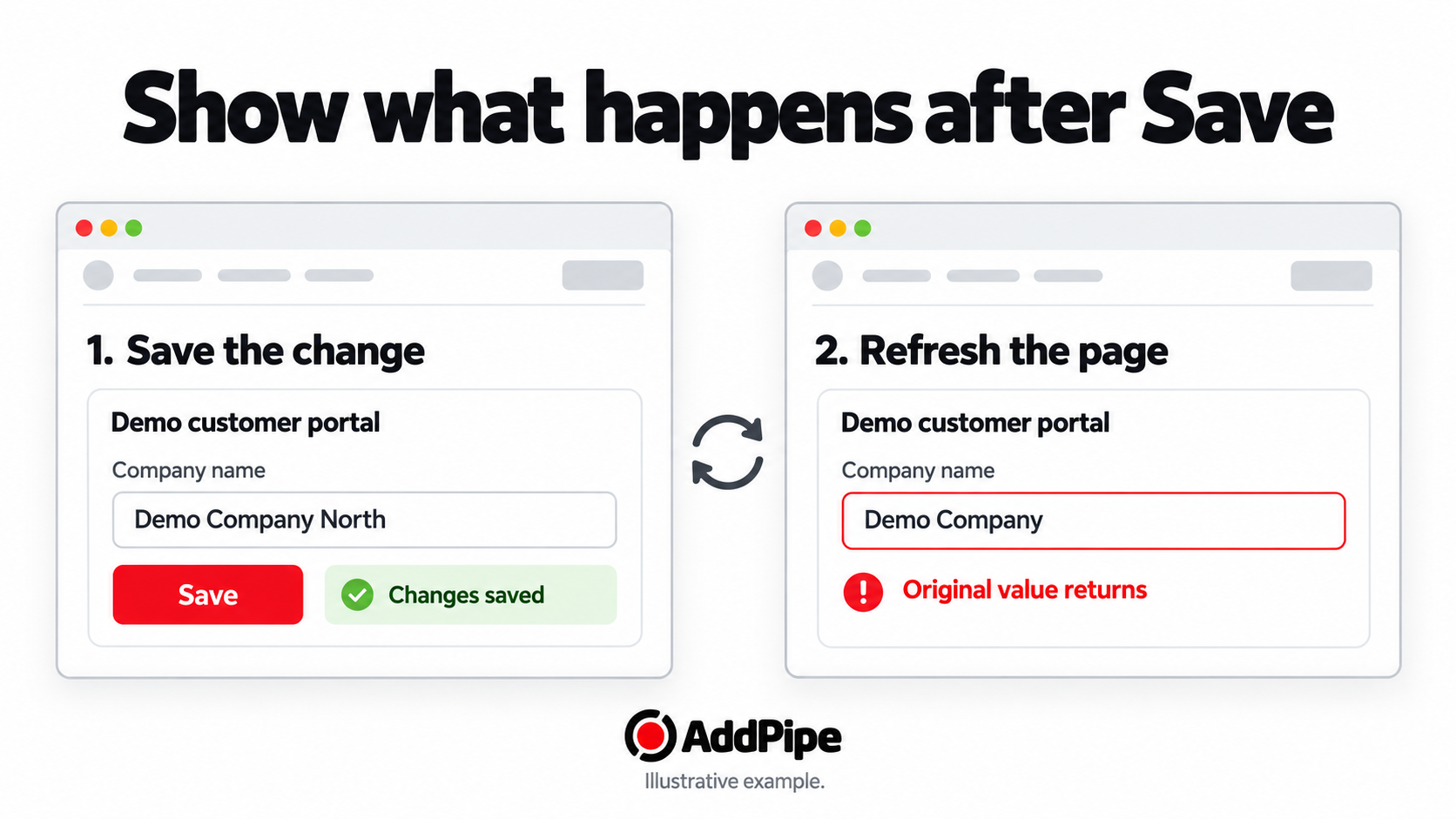
A customer clicks Save, sees a confirmation, then refreshes the page. Their changes are gone. The support request says only: “It doesn't work.”
A useful bug report explains where the problem happened, how to repeat it, what should have happened and what actually happened. A screenshot or short recording can add the evidence that words leave unclear.
Use the bug report template below to collect those details, then see two filled examples and ways to add recording to an existing support form.
Copy this bug report template.
Keep one issue per report. Copy the template, replace the bracketed prompts and mark anything you haven't checked as unknown.
Bug report template
Title: [Action, unexpected result and relevant location]
Page or feature: [Page URL or feature name]
When it happened: [Date, time and time zone]
Environment: [Device, operating system, browser and versions]
Starting conditions: [Sign in state, account role, settings or test data]
Steps to reproduce:
- [Starting point]
- [Action]
- [Action that exposes the problem]
Expected result: [What should happen]
Actual result: [What happened, including the exact error text]
Frequency: [Every attempt, sometimes, or only observed once]
Impact: [What the issue prevents; any workaround]
Evidence: [Screenshot or recording reference; useful timestamp]
Contact or internal reference: [Where the team can follow up]
In a customer support form, make the essentials easy: what went wrong, where it happened, what the person did and what they expected. Ask for technical details when needed. Leave room for “I don't know,” and keep recording optional so people can still report a problem without it.
Two filled bug report examples.
These are fictional examples from a demo customer portal, not bugs observed in AddPipe. The evidence descriptions illustrate what to capture; they do not refer to existing recordings.
Example 1: A profile change disappears after saving.
Title: Company name reverts after refreshing the profile page.
Page: Account settings: Company profile.
When: 27 October 2026, 10:20 UTC.
Environment: Windows 11, Chrome 142, desktop, 100% browser zoom.
Starting conditions: Signed in as an account administrator. Company name is “Demo Company.”
Steps to reproduce:
- Open Company profile.
- Change the company name to “Demo Company North.”
- Click Save and wait for the “Changes saved” message.
- Refresh the page.
Expected: The updated company name remains after refreshing.
Actual: The name returns to “Demo Company,” despite the success message.
Frequency and impact: Happened in three out of three attempts. The administrator cannot retain the updated company name; no workaround identified.
Evidence to capture: A short screen recording showing the edit, save confirmation and refresh. Include the moment the original name reappears.
A recording is useful here because the sequence matters. A screenshot of the final name would miss the earlier success message.
Example 2: The help panel covers a form button.
Title: Help panel covers the Send button at 200% browser zoom.
Page: Help: Contact support.
When: 27 October 2026, 11:05 UTC.
Environment: Windows 11, Chrome 142, desktop, 200% browser zoom.
Starting conditions: Contact form contains a message. The floating help panel is open.
Steps to reproduce:
- Open the contact form and enter a message.
- Set browser zoom to 200%.
- Open the floating help panel.
- Scroll to the Send button.
Expected: The Send button remains visible and usable.
Actual: The help panel overlaps the button and prevents clicking it.
Frequency and impact: Repeats each time under these conditions. Closing the help panel allows submission.
Evidence to capture: A screenshot showing the overlap and zoom setting. Add a recording only if opening or scrolling the panel changes the behavior.
When to use a screenshot or screen recording.
Choose the simplest evidence that explains the issue.
| Evidence | When it helps |
|---|---|
| Screenshot | The problem is visible in one state: an error message, missing field or layout overlap. |
| Screen recording | The order or timing matters: a failed save, disappearing message, unexpected navigation or intermittent interaction. |
| Camera recording | The issue involves a physical device or product that the customer needs to show. |
Ask people to start just before the problem, reproduce it once and stop. If speaking helps, they can describe what they expected while recording. Keep the written steps and error text in the report so the team can scan and search them without watching a clip.
Before recording, close unrelated tabs and notifications and use test data where possible. Avoid capturing passwords, payment details or other people's information. Ask for a tab or window rather than the whole screen when it is sufficient.
AddPipe's browser screen recording is for desktop browsers. For mobile visitors, offer text, screenshot attachment or camera recording as appropriate. Available screen sharing sources and audio depend on the browser and operating system; see the screen recording documentation.
Add recorded evidence to your support form.
Put the optional recording field beside the written description, with a prompt such as:
Show us what happened. Record the steps that lead to the problem and stop when it appears. Please avoid including sensitive information.
AddPipe lets visitors record inside your website or web app. Your form still collects the report and contact details; the integration must associate the recording with that submission. Pick the implementation that matches your setup:
| Your setup | Implementation guide |
|---|---|
| WPForms | Add video messages to WPForms. The WordPress plugin adds a Pipe Recorder field, including in WPForms Lite. |
| Contact Form 7 | Add video messages to Contact Form 7. Add the recorder tag and its corresponding mail tag to include the recording reference in the notification. |
| Jotform | Embed the recorder in a Jotform contact form. The basic iframe example records to your AddPipe account separately; it does not automatically put a recording link in the form submission. |
For the WordPress integrations, follow the plugin setup and webhook instructions so recording information reaches the plugin. Playback links depend on processing; a notification sent earlier may contain a recording ID and a link to the plugin's recordings page instead.
For a custom app, developers can attach a submission reference as recording metadata. Your application must implement the association and access rules. AddPipe supplies recording infrastructure; it does not automatically collect console logs or session replay, or replace your ticketing workflow.
Before launch, test the complete path: submit a report with a recording, check that the right reference reaches the team and confirm that the intended reviewer can play it. Also test submission without a recording and what happens when recording is interrupted.
Start with one report you can investigate.
Use the template for the written context, then request a recording when the interaction needs showing. The result should give your team a clear starting point for reproduction, even when the cause is still unknown.
To explore the recording experience, try the online screen recorder on desktop. To collect recordings inside your own support workflow, explore the embeddable screen recording platform.
