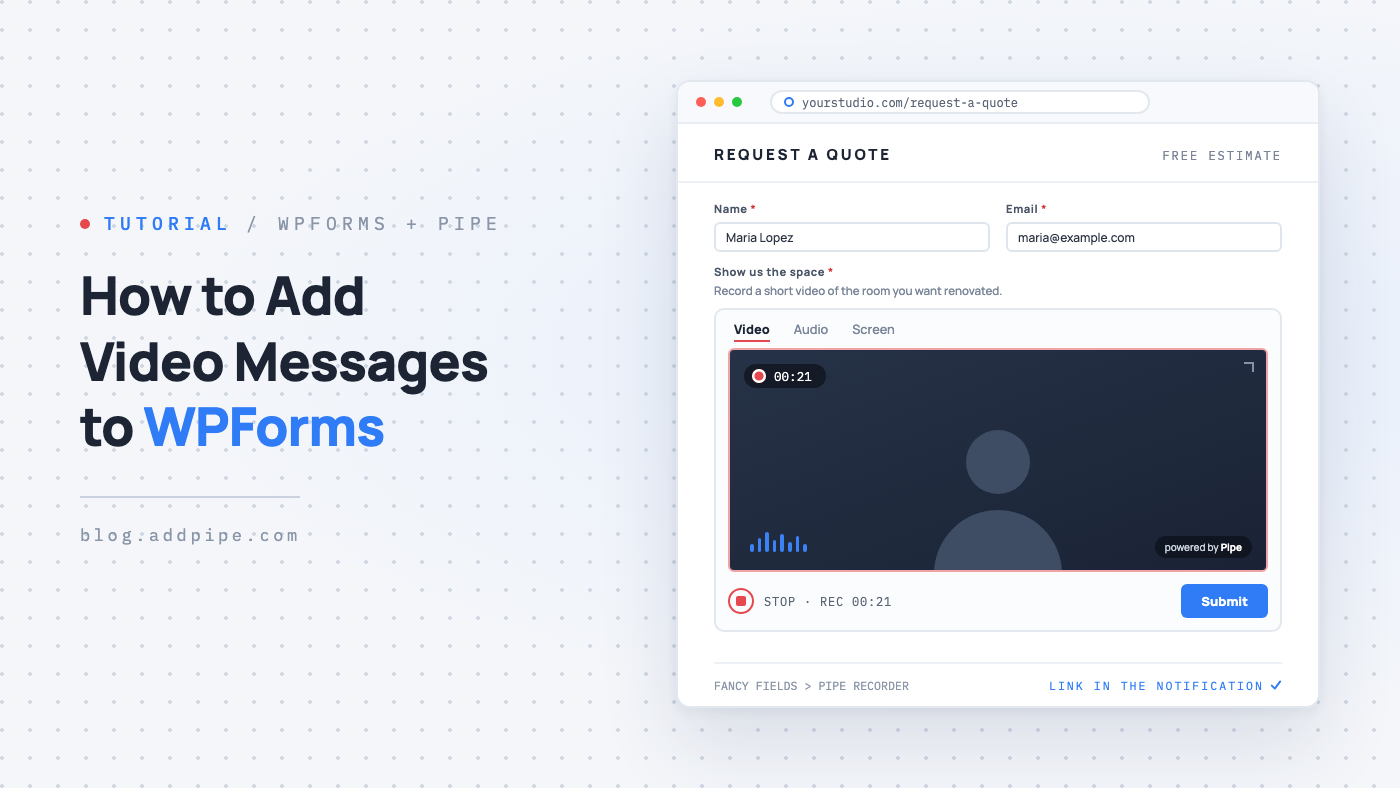
How to Add Video Messages to WPForms
A lot of what people send through a form would be easier to show than to type. A quote request for a room that needs renovating, a support request about a screen that won't load, an application where the person behind it matters more than the CV. A text field gets you a description, and usually a few follow-up emails asking for more details.
The Pipe Audio Video and Screen Recorder plugin for WordPress now works with WPForms. If WPForms is active on your site, the form builder gets a new Pipe Recorder field, so visitors can send you a video, audio, or screen recording together with the rest of the form. It works with the free WPForms Lite version too.
What you need
- WPForms, installed and active. Both WPForms Lite and the paid versions work.
- Our WordPress plugin, version 1.5.0 or newer, connected to your Pipe account
- A Pipe account. A free trial (start one here) is enough to build and test the whole flow. You only need a paid plan when you're ready to take real submissions.
- The Pipe webhook set up for your site, so the recording links show up in your notification emails (how to set it up)
There is no add-on to buy and no code to write. The recorder is a regular field in the WPForms form builder, so you add it the same way you add any other field.
Setting it up
Step 1: Generate the recorder shortcode
- In your WordPress backend, go to Pipe Recorder > Embed Recorder.
- Generate a shortcode for the recorder you want. It will look like
[pipe_recorder 1].
This is where you choose what visitors can record (video, audio only, or screen and camera), along with the resolution and the maximum recording length. The Pipe Recorder field uses one of these shortcodes, so you need at least one before going to the form builder.
For more information about generating shortcodes, see our documentation.
Step 2: Add the Pipe Recorder field to your form
- Go to WPForms > All Forms and open your form in the form builder.
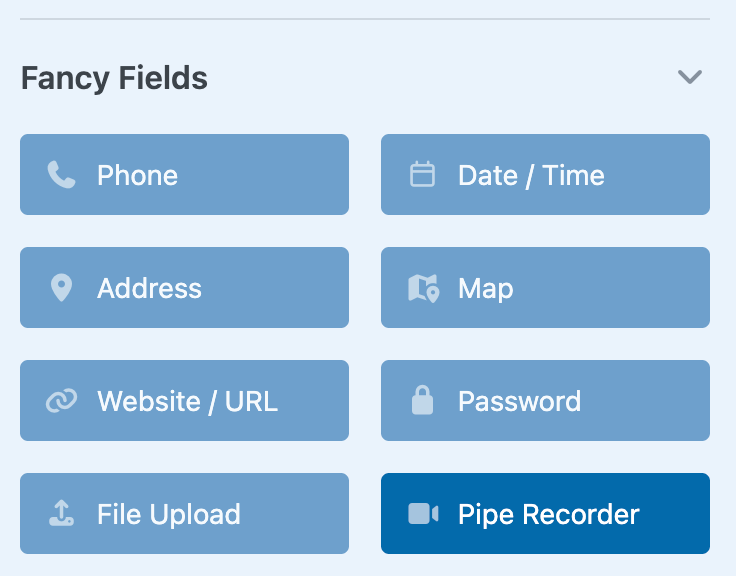
- In the Add Fields tab, under Fancy Fields, click Pipe Recorder, or drag it into the form where you want it.
Step 3: Pick the recorder
- Click the field to open its Field Options.
- In the Recorder dropdown, pick the recorder shortcode you want to show.
Each option in the dropdown shows the shortcode, the recording type (video, audio, or screen + camera), the resolution, and the maximum recording length. That makes it easy to pick the right one if you've created a few recorders for different forms.
Step 4: Set the label, description, and required option
This step is optional. You can change the field's Label and Description to tell visitors what you'd like them to record, for example "Show us the space you want renovated" or "Tell us a bit about yourself". If the form shouldn't be submitted without a recording, turn on Required.
Step 5: Save the form
Click Save. That's all of it. You don't have to change anything in the notification settings either. The default notification message, {all_fields}, already includes the recording.
What visitors see
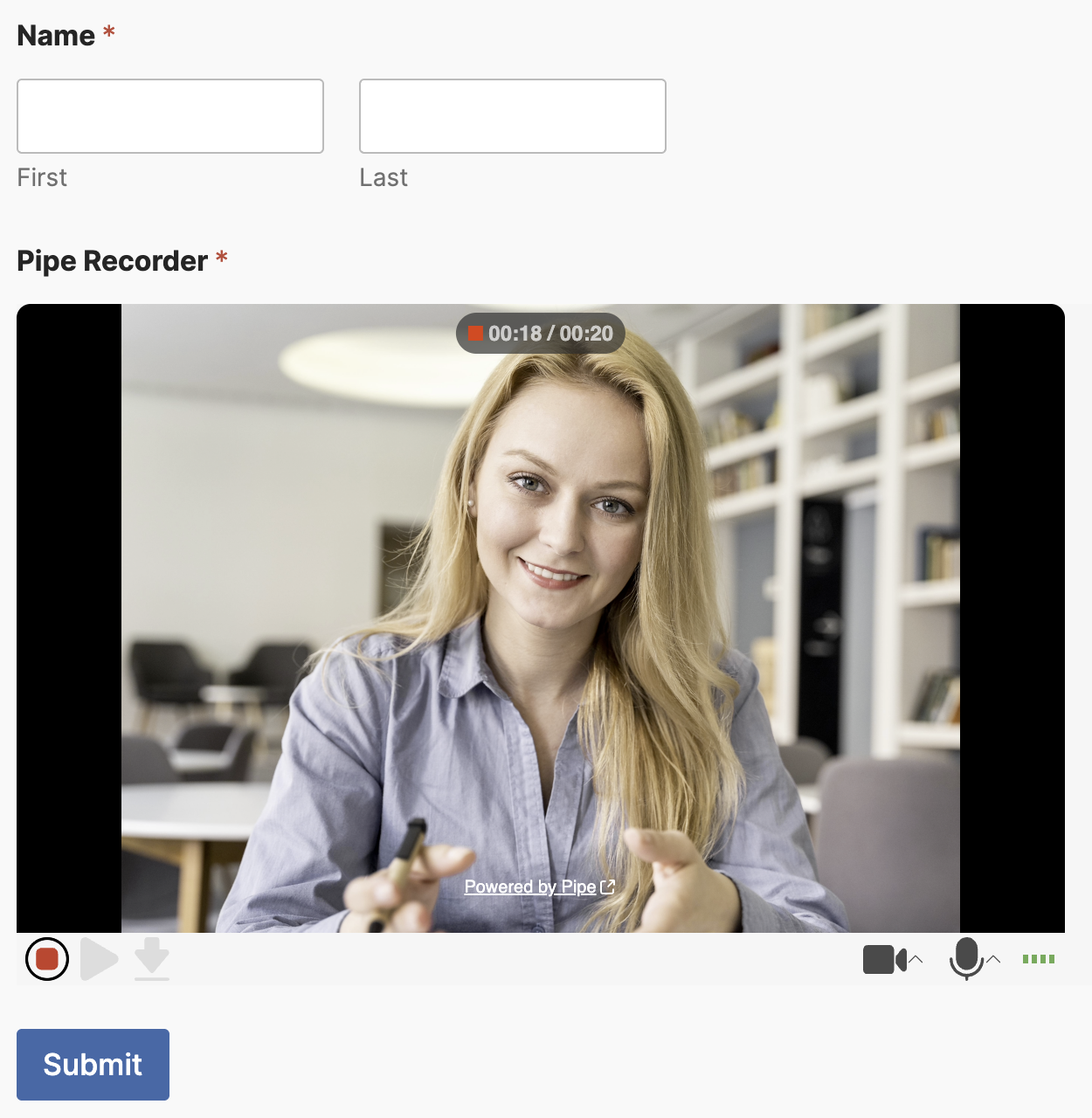
The recorder shows up in the form as a regular field, with your label and description. The visitor records their message, and once they finish, the recording is attached to the field. Then they submit the form as usual, and the recording goes out with everything else they filled in.
They don't need to install anything, and they don't need to upload a file. Recording happens in the browser, on desktop and mobile. If the field is required and nothing was recorded, the field shows an error before the form is submitted, the same way any other required WPForms field does.
What you get in your inbox
In the notification email, the Pipe Recorder field shows a link to the recording, next to the rest of the submitted fields. Click it and you can watch or listen to what the visitor sent.
If you've written your own notification message instead of using {all_fields}, keep {all_fields} in it so the recording link is included.
Heads up: The link to the recording is only available after the Pipe webhook is triggered, so make sure the webhook is set up. If the form is submitted before the recording finishes processing, the email shows the recording id and a link to the plugin's Recordings page instead. The recording is listed there as soon as it's ready.
Every recording also shows up on our plugin's Recordings page and in your Pipe account dashboard, where you can download it or set up your own storage for recordings.
Where this is useful
- Quote and estimate requests, where a short video of the job tells you more than a written description
- Support forms, where a screen recording shows the problem right away
- Job and internship applications, with a short video intro next to the usual fields
- Customer testimonials and reviews, recorded instead of typed
- Registration forms for auditions, competitions, and talent programs
- Intake forms for coaches, consultants, and agencies, where new clients explain what they need in their own words
Frequently asked questions
Does this work with WPForms Lite?
Yes. The Pipe Recorder field works with the free WPForms Lite version as well as the paid versions.
Can I make the recording required?
Yes. Turn on Required in the field's options. If a visitor tries to submit the form without recording anything, the field shows an error, like any other required WPForms field. Leave it off if you want the recording to be optional.
Why does my notification email show a recording id instead of a link?
Either the Pipe webhook isn't set up yet, or the visitor submitted the form before their recording finished processing. Check that the webhook is set up. If it is, open the plugin's Recordings page from the link in the email. The recording will be listed there once it's ready.
Do visitors need to install anything to record?
No. Recording happens in the browser, on desktop and mobile. There are no apps to install and no files to upload.
Is the plugin free?
Our WordPress plugin is free and available in the WordPress Plugin Directory. It records through the Pipe platform, so it needs either a trial account (sign up here) or a paid subscription to work. Trial accounts are fully featured, so you can add the field to a form, submit a few test entries, and see the whole flow before subscribing.
More info
For more information:
- Go through our WordPress plugin's installation instructions, including populating the plugin's list of recordings via a webhook (needed for the recording links to show up in your notification emails).
- Read the plugin's listing in the official WordPress plugin directory.
- Check the WPForms documentation for more on fields and notifications.
