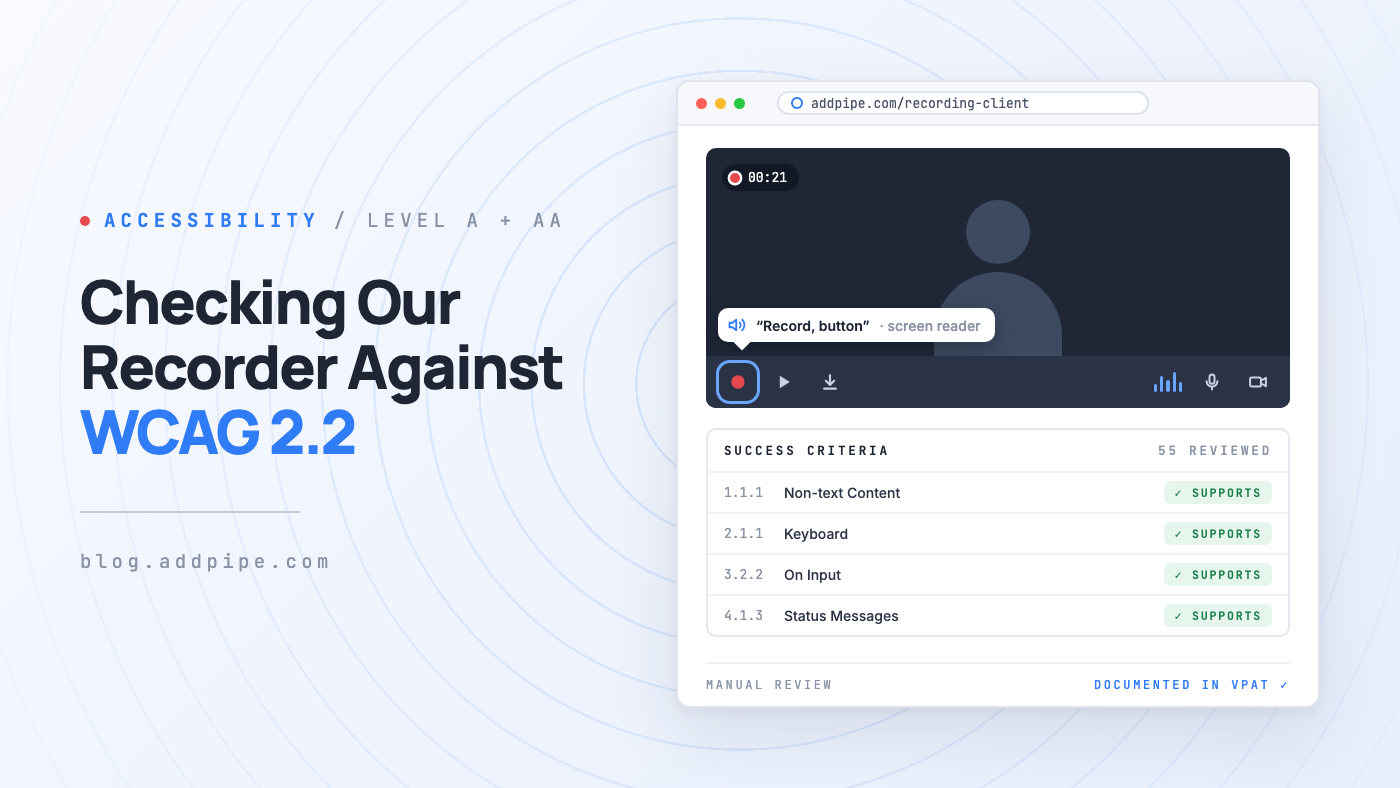
Checking Our Recording Client Against WCAG 2.2
Over the past year, we reviewed Pipe's recording client against the Web Content Accessibility Guidelines (WCAG) 2.2, one success criterion at a time, by hand. This article covers what WCAG 2.2 asks for, how we went through it and what changed as a result.
WCAG 2.2 in short
WCAG is published by the W3C's Web Accessibility Initiative. Version 2.2 became a W3C Recommendation in October 2023, and in October 2025 it was approved as an international standard, ISO/IEC 40500:2025. Most accessibility laws and procurement policies around the world refer to it, or to the earlier 2.x versions it builds on.
The guidelines are organized around four principles. Content has to be:
- Perceivable: people can perceive it with the senses available to them, for example through a screen reader if they can't see the screen.
- Operable: people can operate every control, whether they use a mouse, a keyboard, a switch device or their voice.
- Understandable: people can understand both the content and how the interface behaves.
- Robust: it works reliably with assistive technologies like screen readers.
Under these principles sit testable success criteria, each with a conformance level. Level A covers the essentials: if one of them fails, some people are blocked outright. Level AA builds on top of that. It's the level that laws and organizations typically require, and it's the one we hold ourselves to.
Levels A and AA together add up to 55 success criteria. We went through all of them.
How we went through it
Automated accessibility checkers are useful, but they only show part of the picture. They can tell you a button has no label. They can't tell you whether a screen reader user understands what happens when they pick a different microphone. So we did the review manually.
We took every Level A and AA criterion and checked it against every state of the recorder:
- the initial screen, with its record and upload options
- camera and microphone permission prompts, and the errors that can follow
- the live preview and the camera and microphone selection menu
- video effects, like background blur and background color
- recording, pausing and playing back
- screen recording, including the picture-in-picture camera
- uploading, saving and the status messages around them
- the mobile recorder
We marked criteria that don't apply to a recorder as not applicable, with a note explaining why. We assigned a verdict to every other criterion and, where needed, a fix.
We document the results criterion by criterion in our VPAT (Voluntary Product Accessibility Template). It isn't public, but we'll send it on request.
What changed
Here's what the review led to, grouped by the four principles.
Perceivable
- Every control has a name. The recorder's buttons are icons, so each one now has a proper name, and the icons themselves are hidden from assistive technology. A screen reader announces "Record, button" instead of trying to describe an unlabeled graphic (1.1.1 Non-text Content).
- Enough contrast. The white-on-red BETA badge on some video effects had a contrast ratio of about 4:1, which is below the 4.5:1 required for small text. A darker red brings it to about 5.5:1 (1.4.3 Contrast (Minimum)).
Operable
- The whole recorder works with a keyboard. Recording, stopping, playing back, downloading, saving, switching cameras and microphones, toggling effects, picking a background color and starting a screen share all work without a mouse (2.1.1 Keyboard).
- Focus moves in a logical order, left to right across the controls, matching what you see on screen (2.4.3 Focus Order).
- Arrow keys move through the camera and microphone lists, as they do in any other list of options.
Understandable
- The recorder declares the language of its interface, so screen readers pronounce its text correctly, even when it's embedded in a page written in another language (3.1.2 Language of Parts).
- All interface texts are translated into every language the recorder supports. If you need another language, or just different wording, you can use your own language file.
- No surprises in the device menu. Picking a camera or microphone switches to it right away. WCAG asks that this kind of change be explained before it happens, so the menu now says so up front. Keyboard focus also stays on the selected device after the list refreshes, so nobody gets lost (3.2.2 On Input).
Robust
- Every control says what it is and what state it's in. Buttons are announced as buttons. Video effects are on/off switches that report their current state. The camera and microphone buttons say whether their menu is open, and the selected background color is announced as selected (4.1.2 Name, Role, Value).
- Status messages are read aloud. Connection status, upload progress, save confirmations and errors are announced by screen readers without moving the user's focus (4.1.3 Status Messages).
It's never done
Accessibility isn't something we check once and forget. Every new feature in the recording client goes through the same Level A and AA review before it ships, and the VPAT is updated whenever something changes.
If you embed Pipe on your website or in your app, all of this comes included. Your users get a recorder they can use with a keyboard, a screen reader, or whatever works best for them, and you don't have to build any of it yourself.
