How to Add Video Answers to Tutor LMS Quizzes
Some questions are hard to grade from text. If you teach a language, you need to hear pronunciation. If you train salespeople, you need to watch the pitch. If you teach software, you might need to see their screen. Typing an answer into a box does not tell you much in those cases.
The Pipe Audio Video and Screen Recorder plugin for WordPress now lets you add video, audio, and screen recording answers to your Tutor LMS quizzes. Your students record in the browser — no app, no upload — and the recording is submitted as their answer, so you grade it right where you grade everything else.
What you need
- Tutor LMS 4 or newer - both the free and the pro version work.
- Our WordPress plugin, version 1.3.0 or newer, installed and running.
- A Pipe account. A free trial (start one here) is enough to build and test the whole flow end to end — you only need a paid plan when you're ready to go live with real students.
There is no separate add-on to buy and no code to write.
Step 1: Generate the recorder shortcode
- In your WordPress backend, go to Pipe Recorder > Embed Recorder
- Generate a shortcode for the desired recording widget; it will look like
[pipe_recorder 11].
For more information about generating shortcodes, see our documentation.
Step 2: Add the shortcode to your quiz
Once you have a recorder shortcode, this takes about a minute.
- In the Tutor LMS course builder, open the Curriculum section and add an Open Ended question to your quiz.
- In that question's Description field, paste the recorder shortcode, for example
[pipe_recorder 11]. - Save the quiz.
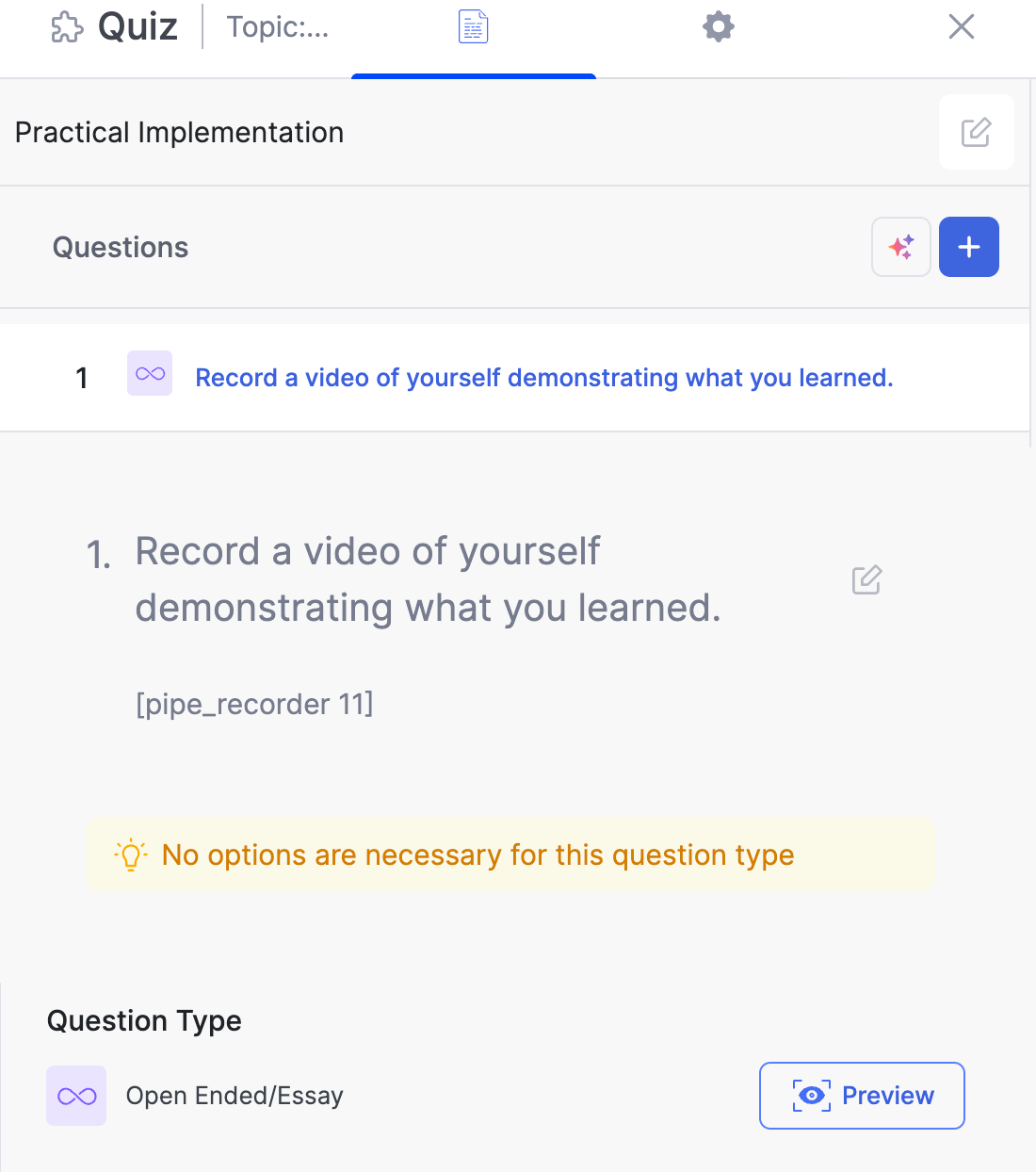
That is the whole setup. You generate the shortcode once in our plugin's Embed Recorder page, where you choose whether the question should capture video, audio only, or screen and camera, along with the recording time limit and the recorder size.
What students see
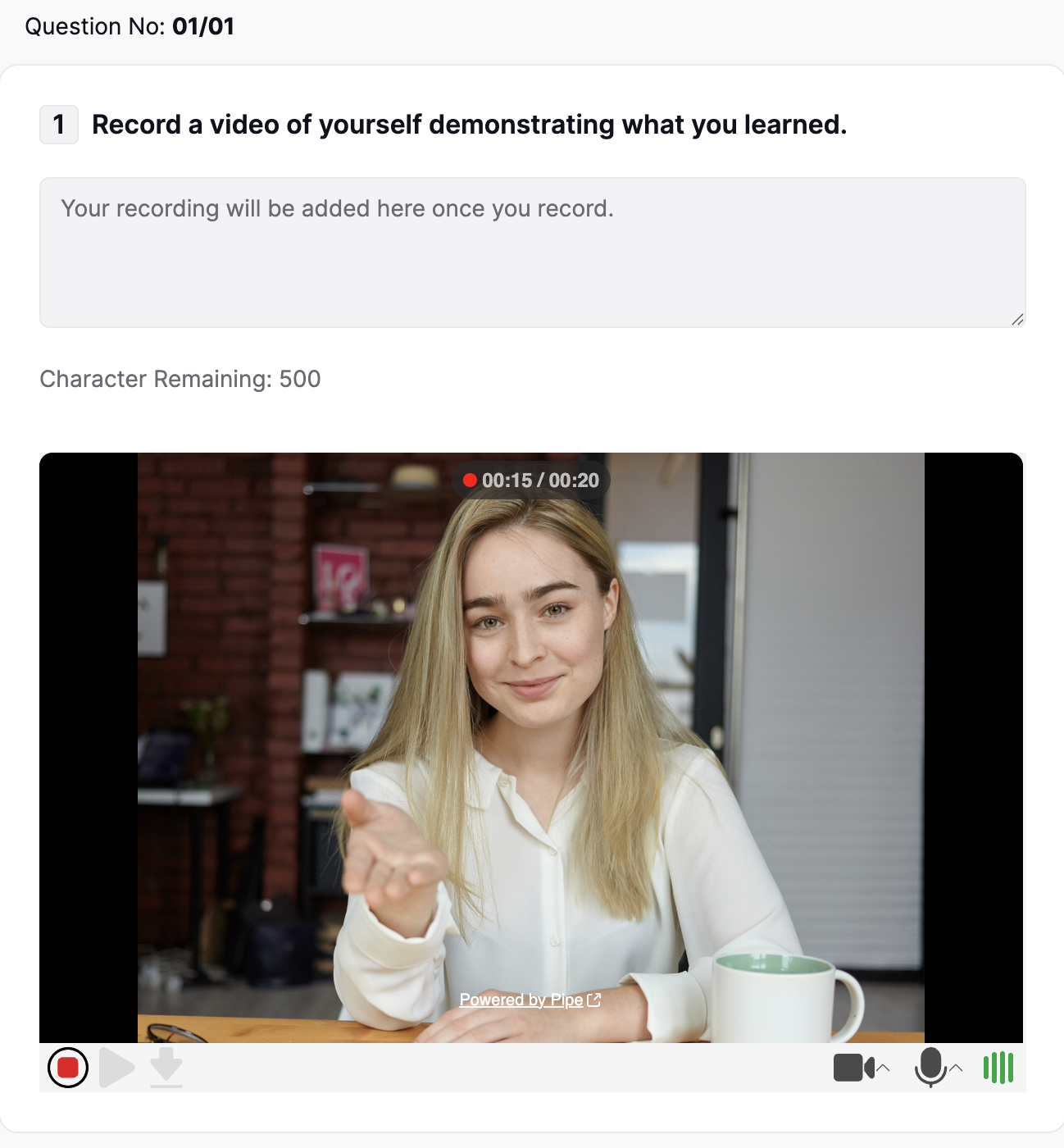
When a student reaches the question, a recorder appears below the (now disabled) text answer field. They record their answer, and it gets attached to the attempt. The quiz is then submitted and graded through Tutor LMS as usual, so attempts, results, and grading all continue to work as before.
What you, the instructor, see when grading
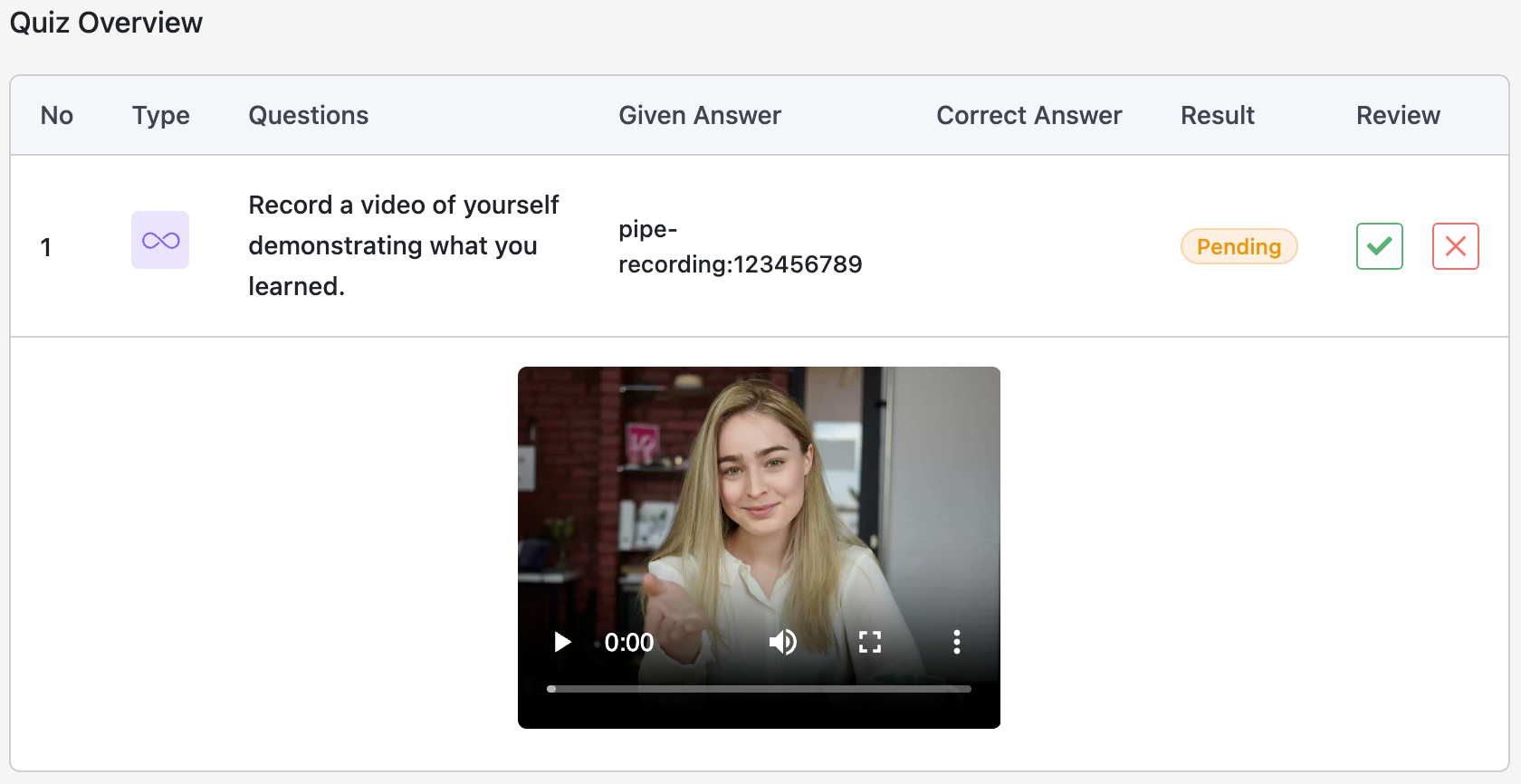
When you review an attempt in the WordPress admin, the recording plays back under the answer. Students see the same playback when they look at their own attempt on the front end.
Recordings also appear on our plugin's Recordings page and in your Pipe account dashboard, where you can download them and configure separate storage services for recordings.
Where course creators can use this
- Language schools collecting spoken answers for pronunciation and fluency checks
- Sales and customer service training with recorded role plays instead of multiple choice
- Coaching and certification programs that ask for a practical demonstration on camera
- Software and technical training using screen recordings to check that a student can actually perform a task
- Music and performance courses where the student needs to play or present something
- Teacher training and public speaking courses built around presentation feedback
Frequently asked questions
Does this work with the free version of Tutor LMS?
Yes. Video, audio, and screen recording answers work with both the free and the pro version of Tutor LMS, as long as you are on Tutor LMS 4 or newer. The question type used for recorded answers, Open Ended, is available in the free version.
Do students need to install anything to record?
No. Recording happens in the browser on desktop and mobile. Students click record, answer the question, and their recording is attached to the attempt. There are no apps to install.
Is the plugin free?
Our WordPress plugin is free and available in the WordPress Plugin Directory, but it records against the Pipe Platform, so it needs either a trial account (sign up here) or a paid subscription to work.
More info
For more information:
- Go through our WordPress plugin's installation instructions, including populating the plugin’s list of recordings via a webhook (mandatory step for the videos to appear for playback in the WP backend and Tutor LMS).
- Read the plugin's listing in the official WordPress plugin directory.
- Contact us with any issues or questions.
