
5 Lesser Known Video Tools We Use Every Day
LosslessCut
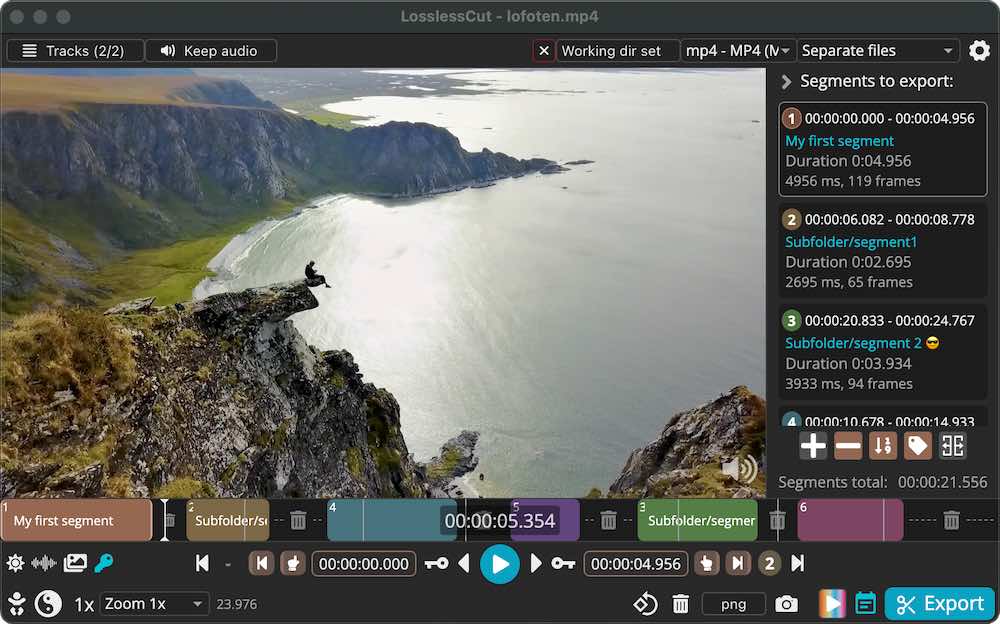
LosslessCut is an awesome player/editor that needs more recognition. It's advertised as a lossless cut editor, but we use it to:
- Quickly inspect a video file for the presence and position of keyframes ( they are shown in the playback track, and you can jump/skip to them)
- List the available tracks and, for each track, the audio/video codec, length and bitrate
- With the audio histogram: review the number of audio channels and whether or not it's a duplicate mono channel or 2 distinct channels
- Has a small notification when you open a WebM without duration and prompts you to fix the file's duration.
LosslessCut is free and open source; you can download it from https://losslesscut.app/.
Chrome's Media Internals
chrome://media-internals/ lists all the video capture resolutions + fps combos supported by your webcams. It also lists the associated capture API (AV Foundation on macOS and Media Foundation on Windows). There's a useful Copy to Clipboard shortcut which exports the data as JSON. Useful when you're in front of the computer you're setting up or debugging. For end users, however, it's easier to send them our webcam resolution tester, as it gathers several other pieces of information and works in other browsers as well.
Webcam Resolution Tester
We built the webcam resolution tester to help with our own debugging efforts. It detects the maximum resolution your desktop webcam or mobile camera supports and the frame rate it can actually capture at that resolution. You can also preview each resolution & fps combo live.
Since we often needed results from a client's machine, not ours, we made it easy to share: send someone the link, and they can export the detailed results table to CSV, Markdown, JSON, or XML and send it back. The tool is open source and available on GitHub.
Chrome DevTools' Media Panel
You can use the Media Panel in Chrome DevTools to view and debug media players in each browser tab. If you don't see the panel, you can enable it by clicking the 3 dots at the top right of the Dev Tools window > More tools > Media .
We use it to:
- view basic information about the file being played back, like URL and resolution
- view detailed information about the playback effort, including what's used to decode the video and audio data (e.g FFmpegAudioDecoder) , whether or not hardware decoding is used, view logs/messages from the demuxer, audio and video decoders, etc.
- understand buffering, playback, and pause events using the graphic timeline
- remote debug playback issues on Chrome on Android
For more information, check out the Media Panel article on developer.chrome.com.
ffprobe
ffprobe is a command-line tool that ships with FFmpeg and can be used to view information about a video or audio file without converting it. Since it ships with ffmpeg, ffropbe is easily available on every machine.
We use it to:
- Quickly identify the tracks, codecs, and duration for local and remote (HTTPS) audio/video files.
- Check video resolution, h264 level, encoder, frame rate, aspect ratio, and bitrate.
- Inspect whether or not WebM files have duration information in them.
- For videos with muted audio, we use it to detect if there's a silent audio track or no audio track at all.
- Light diagnose of corrupt media files.
- Extract detailed information about the audio and video frames/keyframes and export that information as JSON.
Here's a quick example when it's run on a WebM file without duration:
octavn@Mac Downloads % ffprobe -hide_banner video_9239926.webm
Input #0, matroska,webm, from 'video_9239926.webm':
  Metadata:
    encoder         : Chrome
  Duration: N/A, start: 0.000000, bitrate: N/A
  Stream #0:0(eng): Video: h264 (Baseline), yuv420p(tv, bt709/bt709/smpte240m, progressive), 640x480, SAR 1:1 DAR 4:3, 1k tbr, 1k tbn (default)
  Stream #0:1(eng): Audio: opus, 48000 Hz, mono, fltp, start 0.020000 (default)
To get the frames as JSON we use the following:
ffprobe -v quiet -print_format json -show_frames video_9239926.webm
